Skip to content
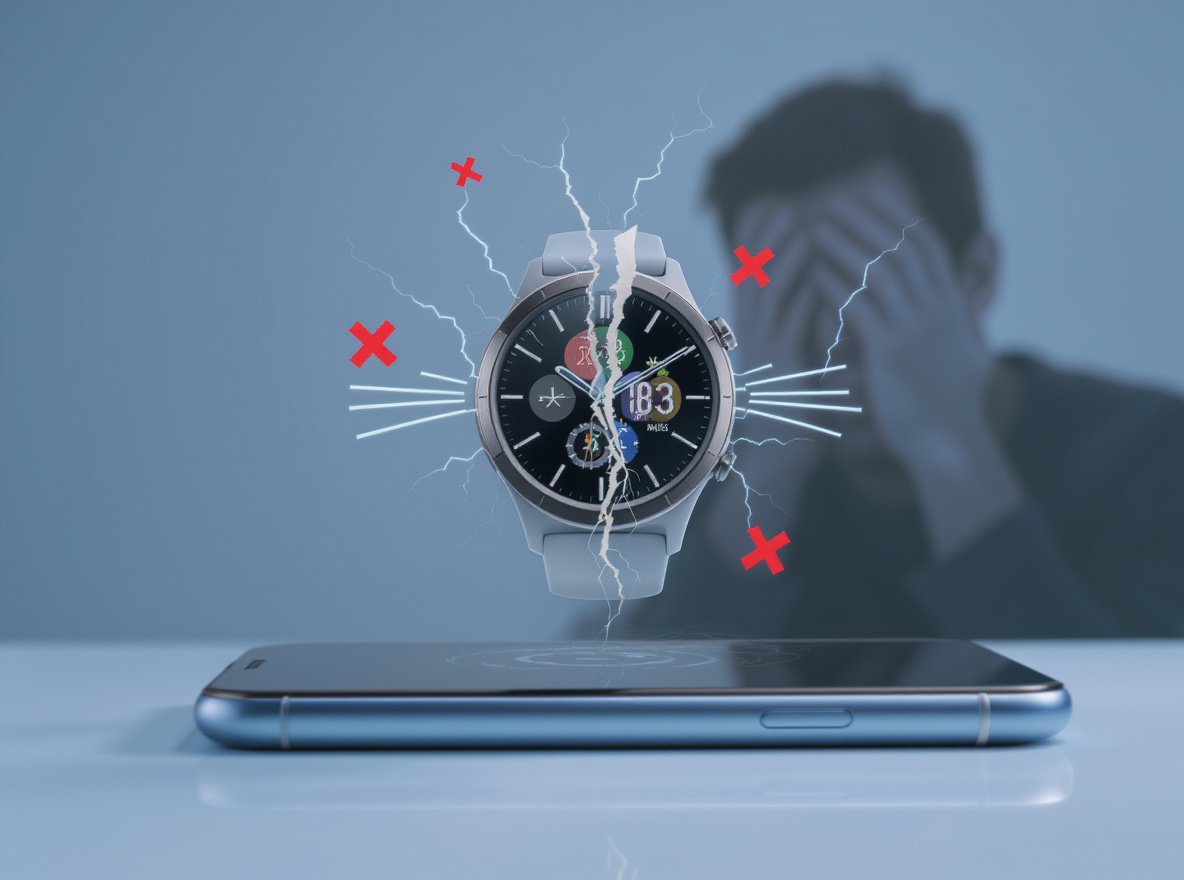
You’re tracking your morning run when suddenly your fitness data stops syncing. Your smartwatch notifications go silent, and you realize your device has disconnected from your phone again. This frustrating issue affects millions of smartwatch users daily, disrupting workout tracking, missing important calls, and breaking the seamless connected experience you depend on.
Your smartwatch keeps disconnecting from your phone primarily due to Bluetooth range limitations, battery optimization settings, software compatibility issues, or environmental interference. Most disconnection problems occur when devices exceed the 30-33 feet effective range, when phone sleep modes restrict background apps, or when wireless interference disrupts the 2.4GHz Bluetooth signal. Simple troubleshooting steps resolve 80% of these connectivity issues.
Let’s explore the specific causes and proven solutions that will keep your smartwatch reliably connected throughout your day.
What Are the Main Causes of Smartwatch Bluetooth Disconnections?
Understanding why smartwatches disconnect helps you prevent these issues before they disrupt your daily routine. Multiple technical and environmental factors can interfere with the delicate Bluetooth connection between your devices.
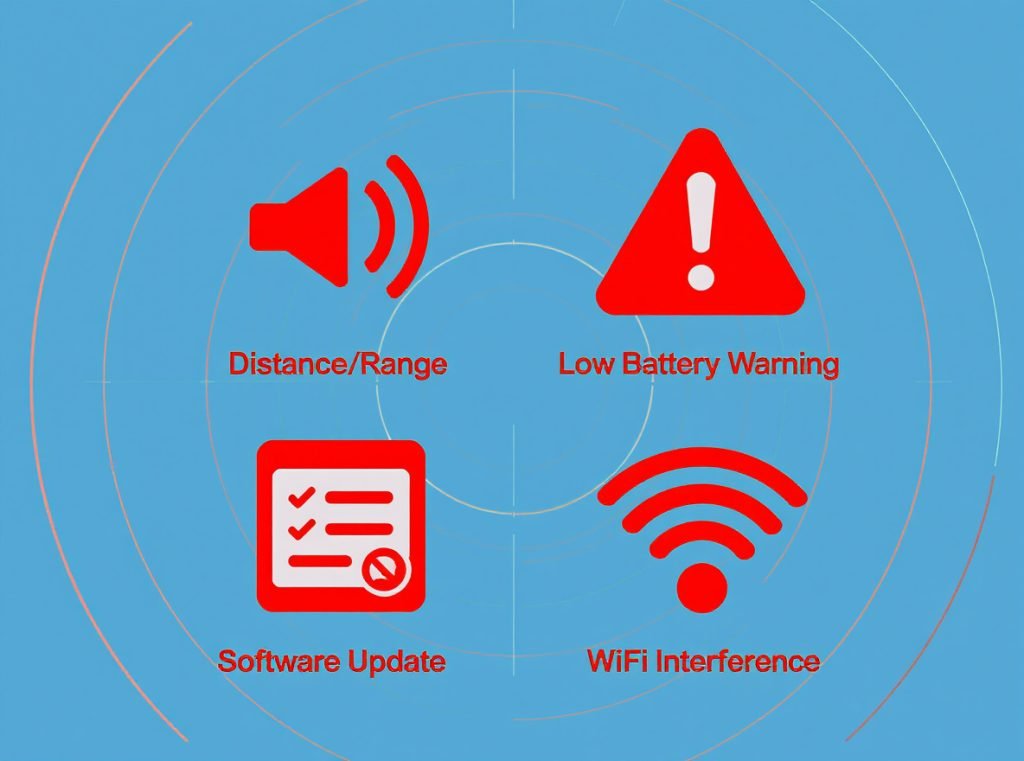
Distance limitations, battery-related issues, software compatibility problems, and wireless interference are the four primary causes of smartwatch disconnections. Most issues stem from exceeding Bluetooth’s 30-33 feet range or phone power management features that restrict background connectivity.
Smartwatch disconnection issues are among the most frequent frustrations users experience, with most smartwatches connecting via Bluetooth which has inherent limitations that can cause connectivity problems.
Distance and Physical Barriers
Bluetooth connections work reliably within 30-33 feet (10 meters) in open spaces, but this range can be significantly reduced by physical barriers such as walls, floors, or even your own body. Your smartwatch may disconnect when you move between rooms, go upstairs, or place obstacles between your devices.
Battery Optimization Conflicts
When batteries drop below approximately 70% charge, both devices may struggle to maintain consistent Bluetooth connectivity. Modern smartphones aggressively manage power consumption, often restricting Bluetooth connections to preserve battery life.
Software Version Mismatches
Outdated software on either device frequently causes disconnection issues, and software updates can sometimes introduce new bugs or compatibility problems, particularly when manufacturers change Bluetooth protocols.
| Disconnection Cause | Frequency | Typical Range Impact | Quick Fix |
|---|---|---|---|
| Distance/Barriers | Very High | 10-30 feet | Stay closer to phone |
| Low Battery | High | Normal range | Charge both devices |
| Software Issues | Medium | Normal range | Update firmware |
| Interference | Medium | 5-15 feet | Change location |
How Does Phone Sleep Mode Affect Smartwatch Connectivity?
Phone sleep modes and power management features frequently cause smartwatch disconnections, especially during overnight hours or periods of phone inactivity. Understanding these settings prevents unnecessary connection drops.
When phones enter sleep or deep sleep modes, they may automatically disconnect from smartwatches to conserve battery power. Background app restrictions and aggressive power management settings prevent companion apps from maintaining continuous Bluetooth connections.
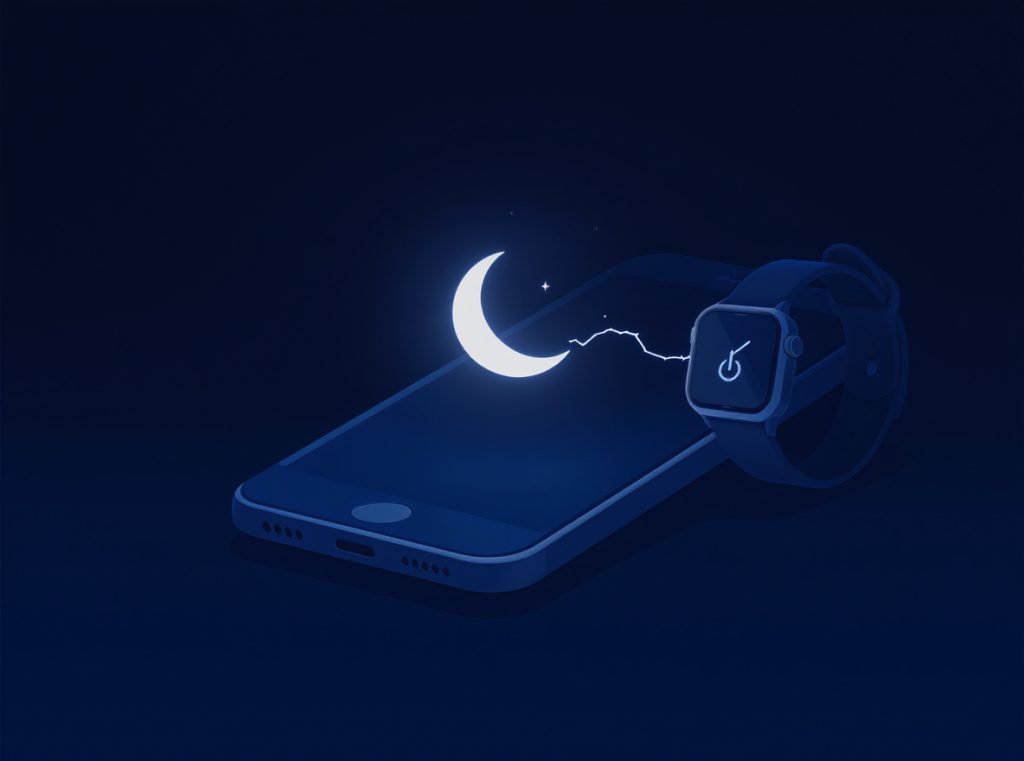
Background app restrictions can prevent smartwatch companion apps from maintaining continuous connections, while some phones have aggressive power management settings that automatically disable Bluetooth connections during inactivity periods.
Smart Lock Interference Issues
Android users experience a specific problem where Smart Lock features cause constant disconnection notifications. Smart Lock features can cause constant disconnection notifications even when the watch remains functionally connected, and disabling Smart Lock in Security settings often resolves this phantom disconnection problem.
Power Management Solutions:
Configure your phone’s power settings to prioritize smartwatch connectivity over battery savings during critical periods.
Critical Settings to Adjust:
- Disable battery optimization for companion apps
- Allow background activity for smartwatch applications
- Exempt Bluetooth from automatic power-saving modes
- Configure Smart Lock settings to prevent notification spam
For Android devices, navigate to Battery Settings > Battery Optimization and select “Don’t optimize” for your smartwatch companion app. iOS users should enable Background App Refresh for their smartwatch app in Settings > General > Background App Refresh.
What Environmental Factors Cause Smartwatch Connection Problems?
Physical environments significantly impact Bluetooth stability between smartwatches and smartphones. Recognizing problematic locations helps you adapt usage patterns and maintain reliable connections.
Wireless interference from microwaves, Wi-Fi networks, and other 2.4GHz devices commonly disrupts smartwatch connections. Dense Wi-Fi environments, metal structures, and crowded Bluetooth spaces reduce effective connection range and stability.
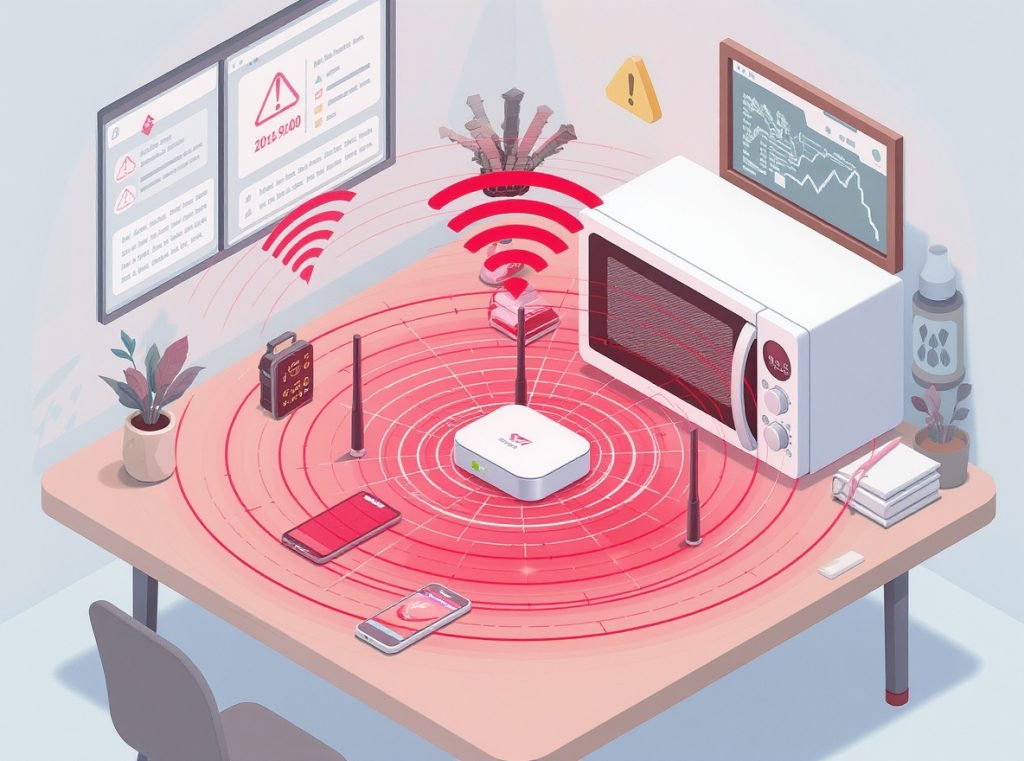
Environmental factors like wireless interference from microwaves, Wi-Fi routers, or other electronic devices can limit effective range, with common sources including microwave ovens, dense Wi-Fi networks, physical obstacles like concrete walls or metal structures, and crowded Bluetooth environments with multiple active devices.
High-Interference Environments:
Different locations present unique connectivity challenges that require specific adaptation strategies.
Corporate Office Buildings
Dense Wi-Fi networks and electronic equipment create significant interference. Metal filing cabinets, server rooms, and multiple wireless devices compete for the same 2.4GHz frequency space your smartwatch uses.
Fitness Centers and Gyms
Metal exercise equipment, crowded spaces, and multiple fitness trackers create challenging Bluetooth environments. The combination of physical barriers and electronic interference often reduces effective range to 10-15 feet.
Shopping Centers and Airports
Security equipment, metal detectors, and crowd density significantly impact connectivity. Some users experience disconnections specifically when cellular data is active, particularly in certain regions where LTE networks may interfere with Bluetooth signals.
- Microwave ovens: Create strong 2.4GHz interference within 15 feet
- Wi-Fi routers: Cause signal conflicts in crowded network areas
- Metal structures: Block and reflect Bluetooth signals
- Electronic devices: Compete for limited frequency spectrum
How Do Software Updates Impact Smartwatch Connectivity?
Software updates create both solutions and new problems for smartwatch connectivity. While updates often improve Bluetooth stability, they can also introduce compatibility issues or change connection protocols unexpectedly.
Software updates frequently include Bluetooth stability improvements and bug fixes, but major OS updates sometimes break compatibility with existing smartwatch models. Mismatched software versions between devices commonly cause persistent connection problems.
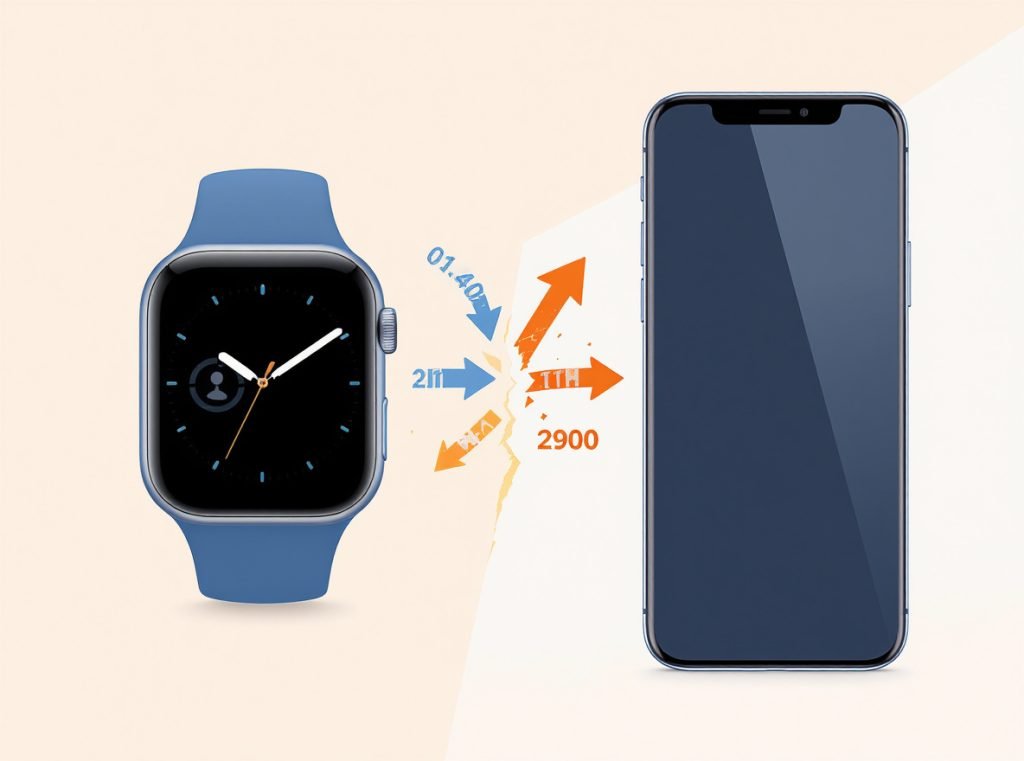
While updates often include Bluetooth stability improvements, they can also introduce new bugs or change connection protocols, with major OS updates (like iOS or Android version changes) sometimes breaking compatibility with existing smartwatch models.
Update-Related Problems:
Coordinating updates across multiple devices requires careful timing to maintain optimal compatibility.
Version Compatibility Management
Update all connected devices within the same timeframe to prevent version conflicts. Your smartwatch firmware, companion app, and phone operating system should remain within compatible version ranges.
Companion App Issues
Outdated or corrupted companion apps frequently cause disconnection problems, with clearing app cache, updating to the latest version, or completely reinstalling the companion app often resolving these issues.
Strategic Update Approach:
- Monitor update release notes for connectivity improvements
- Test connectivity immediately after updates
- Document working configurations before major updates
- Maintain app backups for quick rollback if needed
Some manufacturers release specific updates targeting Bluetooth connectivity issues. Samsung, Apple, and Google regularly publish firmware updates that address known disconnection problems reported by users.
Which Phone Settings Commonly Interfere With Smartwatch Connections?
Smartphone settings frequently conflict with smartwatch connectivity requirements. Identifying and adjusting these settings resolves many persistent disconnection issues that users attribute to hardware problems.
Do Not Disturb modes, background app restrictions, location service limitations, and Bluetooth power management settings commonly interfere with smartwatch connections. Permission denials for notifications, phone access, and location services cause intermittent connectivity problems.
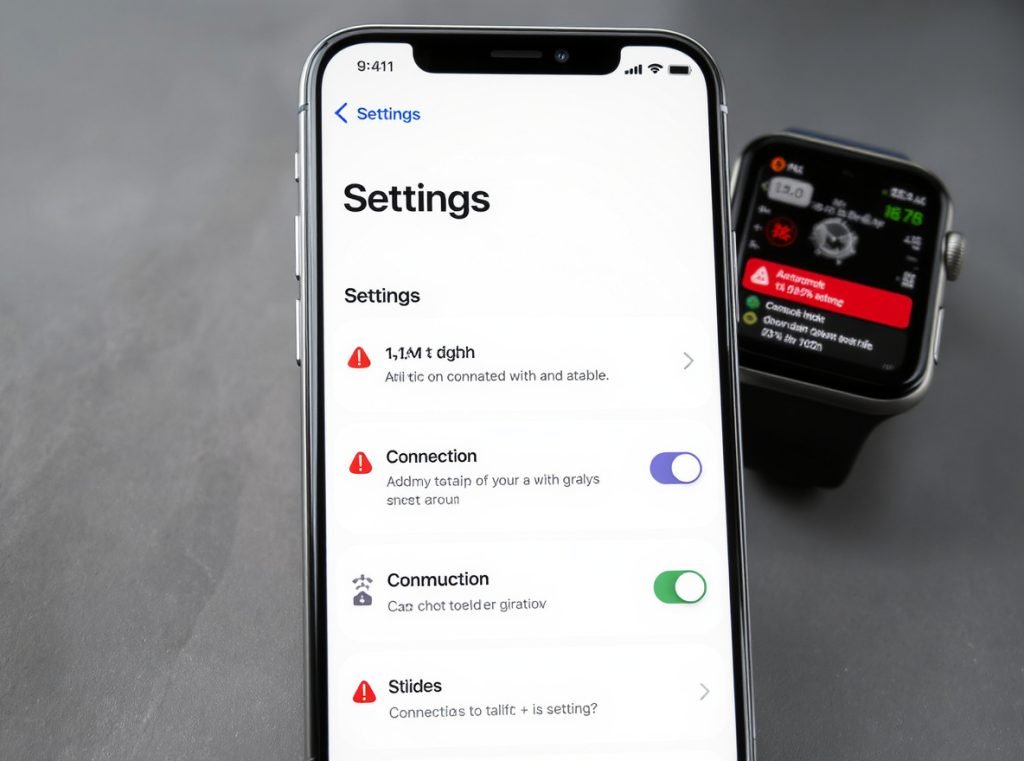
Several phone settings can disrupt smartwatch connectivity, including Bluetooth power management (ensure Bluetooth isn’t set to turn off automatically), background app restrictions (allow companion apps to run continuously in the background), location services (many smartwatch apps require location permissions to function properly), and Do Not Disturb settings (can interfere with notification syncing and connection maintenance).
Critical Settings Review:
Systematically review these settings categories to eliminate connectivity barriers on your smartphone.
Permission Management
Smartwatch apps typically require multiple permissions including Bluetooth, location, notifications, and phone access, with denying these permissions causing intermittent disconnections.
Essential permissions for stable connectivity:
- Bluetooth access: Core connectivity requirement
- Location services: Required for fitness tracking and smart features
- Notification access: Enables message and call forwarding
- Phone access: Allows call handling and contact sync
- Background activity: Maintains continuous connection
Network and Data Controls
Review cellular data restrictions, Wi-Fi calling configurations, and mobile hotspot settings that might interfere with Bluetooth operations.
| Setting Category | Impact Level | Common Issues |
|---|---|---|
| Do Not Disturb | High | Blocks notifications and sync |
| Background Restrictions | Critical | Kills companion apps |
| Location Services | Medium | Breaks smart features |
| Bluetooth Power Management | High | Auto-disconnects devices |
What Are the Most Effective Troubleshooting Steps for Connection Issues?
When disconnections occur, following systematic troubleshooting steps quickly identifies and resolves the underlying problem. These proven methods address both immediate connectivity needs and long-term stability.
Basic troubleshooting resolves 80% of smartwatch connection problems through device restarts, Bluetooth toggling, range verification, and interference elimination. Advanced solutions include complete re-pairing, app reinstallation, and factory resets for persistent issues.
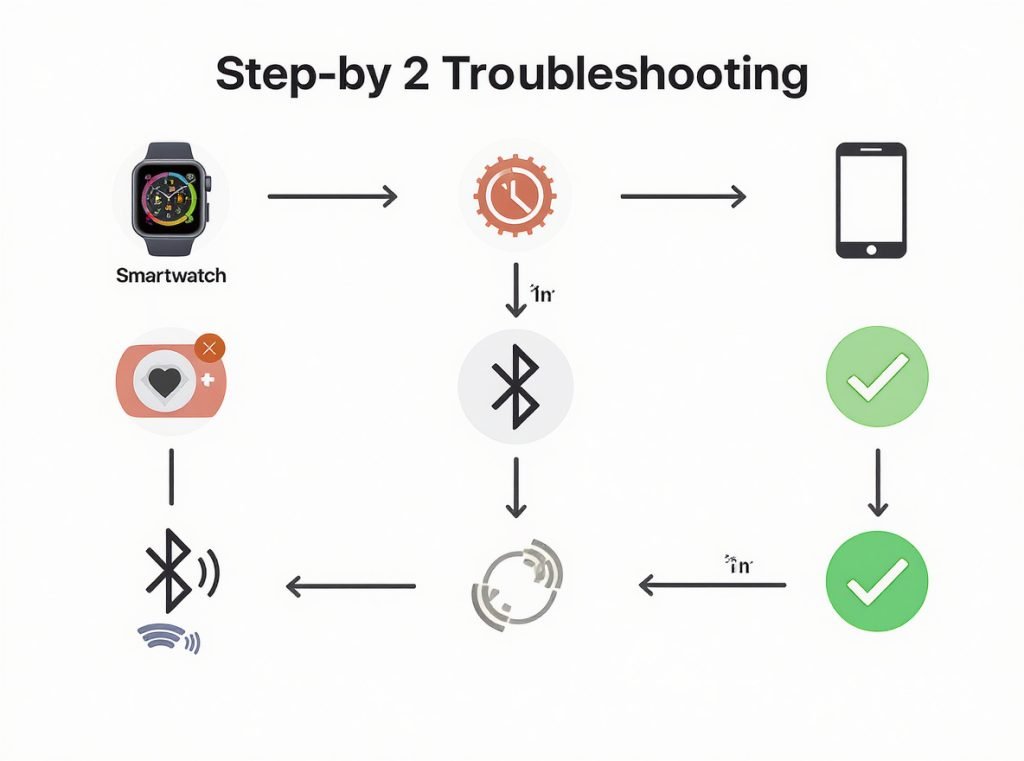
Immediate actions include checking basic requirements (ensure Bluetooth is enabled on both devices and they’re within range), restarting connection (toggle Bluetooth off and on for both devices), restarting devices (power cycle both phone and smartwatch), and checking for interference (move away from potential wireless interference sources).
Systematic Troubleshooting Approach:
Start with simple solutions before progressing to more complex interventions that require reconfiguration.
Immediate Quick Fixes
Address the most common causes first with minimal disruption to your configured settings.
Begin by verifying basic connectivity requirements: ensure both devices have Bluetooth enabled, check battery levels above 20%, and confirm devices are within 30 feet of each other without major obstacles.
Progressive Solution Steps:
- Toggle Bluetooth: Turn off Bluetooth on both devices, wait 30 seconds, then re-enable
- Restart devices: Power cycle both phone and smartwatch completely
- Check interference: Move away from Wi-Fi routers, microwaves, or crowded electronic areas
- Verify range: Bring devices within 10 feet to test connection stability
Advanced Resolution Methods
If basic steps fail, advanced solutions include forgetting and re-pairing devices (remove the Bluetooth connection and pair fresh), clearing app data (uninstall and reinstall the companion app), and factory reset watch.
Complete re-pairing eliminates corrupted connection profiles that cause intermittent disconnections. This process requires reconfiguring your smartwatch settings but often resolves persistent connectivity problems.
How Can You Maintain Long-Term Connection Stability?
Preventive maintenance and optimal usage habits significantly reduce smartwatch disconnection frequency. Implementing these best practices creates reliable connectivity that enhances your overall smartwatch experience.
Regular software maintenance, proper device positioning, battery management, and environmental awareness prevent most disconnection issues. Keeping devices updated, maintaining adequate charge levels, and avoiding high-interference areas ensures consistent connectivity.
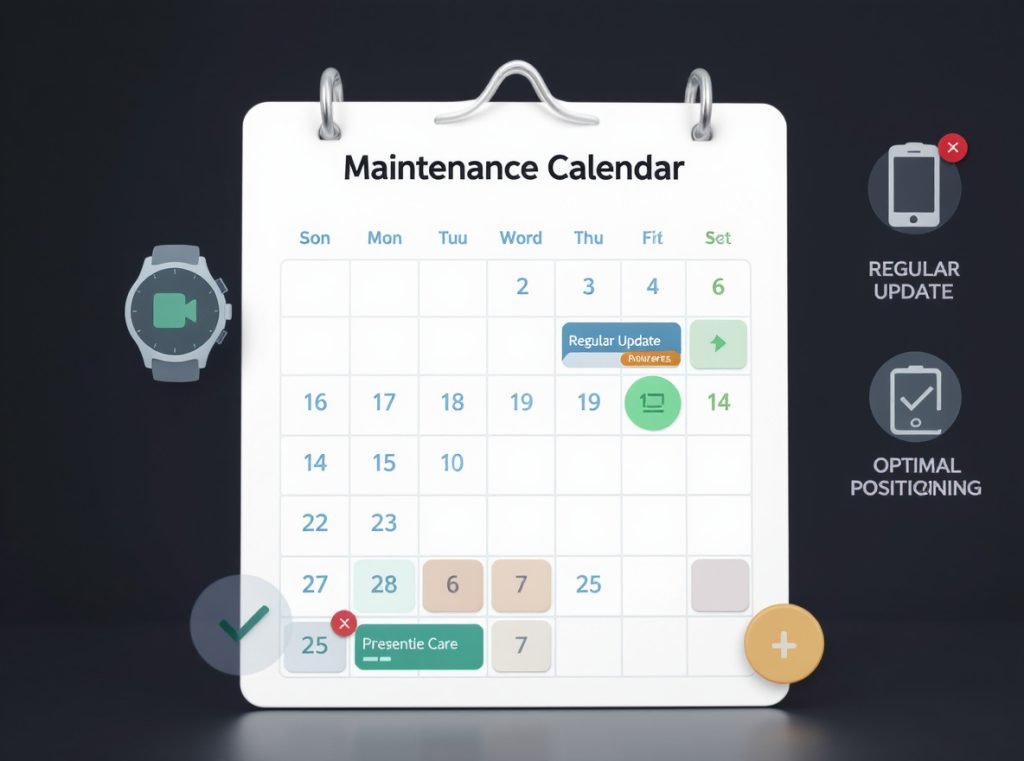
Preventive measures include keeping your smartwatch within 10 meters of your phone whenever possible, avoiding physical barriers between devices, being mindful of interference sources, and maintaining both devices above 70% charge when possible.
Proactive Maintenance Schedule:
Establish regular routines that address both immediate connectivity needs and long-term device health.
Weekly Maintenance Tasks
- Restart both devices to clear temporary glitches
- Update companion apps through official app stores
- Review power management settings for changes
- Clean device contacts and charging ports
- Monitor connection patterns for problem areas
Monthly Deep Maintenance
- Clear companion app cache to prevent data corruption
- Review and update software on both devices
- Assess battery health and charging habits
- Document any recurring connectivity issues
- Optimize home and work environment for better coverage
Environmental Optimization Strategies:
Always use the official companion app recommended by your smartwatch manufacturer, use QR codes provided with the device to ensure you download the correct app version, and when pairing, ensure both devices are fully charged and within close proximity.
Position Wi-Fi routers away from areas where you frequently use your smartwatch. Consider upgrading to 5GHz Wi-Fi networks to reduce 2.4GHz congestion. Create “device-friendly” zones in your home and office where interference is minimized.
For wholesale buyers and retailers, these maintenance practices become critical selling points. Customers appreciate devices that maintain reliable connections with minimal intervention, making connectivity stability a key differentiator in competitive markets.
Summary
Smartwatch disconnection issues typically result from Bluetooth range limitations, power management conflicts, software compatibility problems, and environmental interference. Most problems resolve through basic troubleshooting including device restarts, software updates, power setting adjustments, and maintaining proper distance between devices. Understanding these causes and implementing preventive maintenance practices creates reliable connectivity that enhances user satisfaction and reduces support requests.
If you’re a wholesaler, distributor, or retailer seeking smartwatches with proven connectivity reliability, Osmarto specializes in manufacturing devices that minimize these common disconnection issues. Our smartwatches undergo comprehensive Bluetooth stability testing and include detailed troubleshooting documentation to support your customers. Contact Osmarto today to discuss bulk pricing and technical specifications that ensure superior user experiences and reduce returns due to connectivity problems.