Skip to content
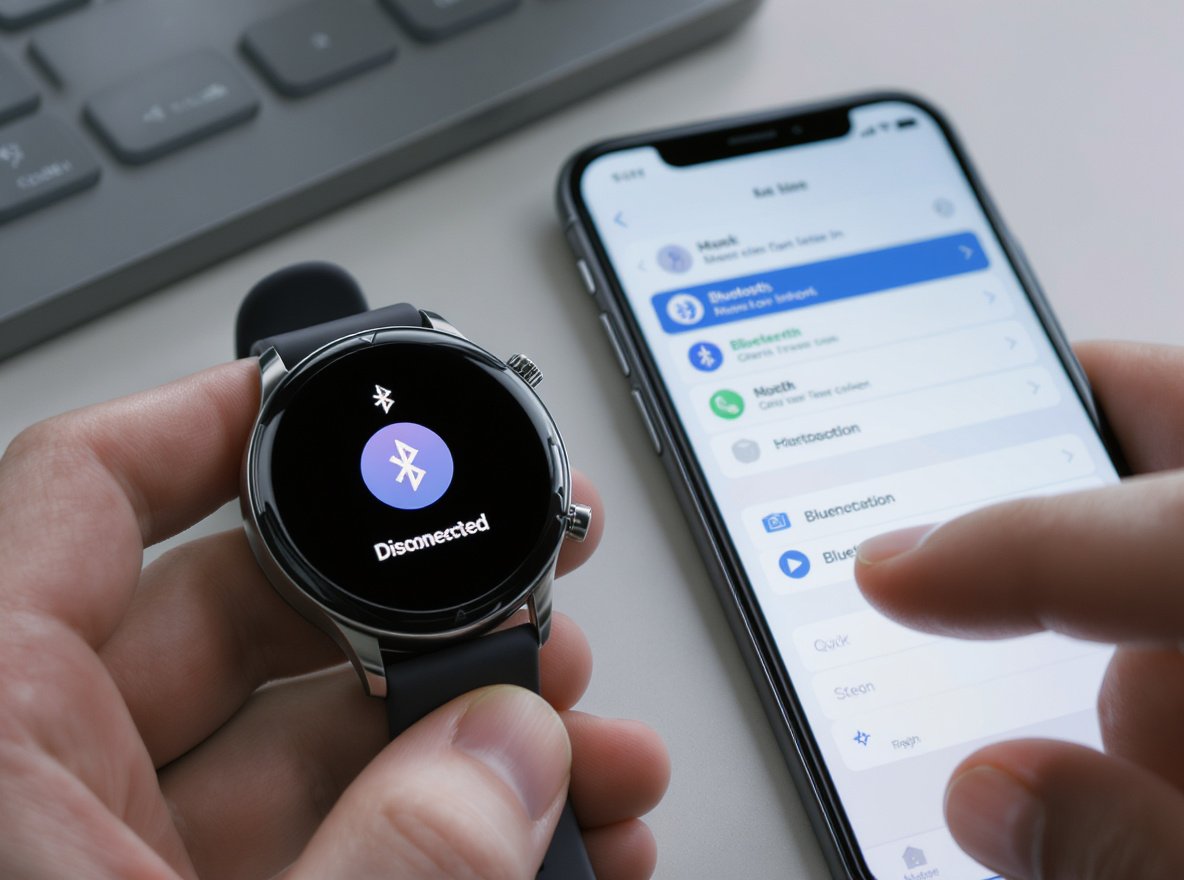
Nothing’s more frustrating than a smartwatch that won’t sync with your phone, leaving you with incomplete fitness data and missed notifications. You’ve invested in this technology to streamline your life, but instead, you’re dealing with connection headaches that disrupt your daily routine.
The most effective steps to fix smartwatch syncing issues include checking Bluetooth connectivity, restarting both devices, updating software, clearing cache data, and re-pairing the connection. Most syncing problems stem from Bluetooth interference, outdated software, or corrupted temporary files that can be resolved through systematic troubleshooting.
These proven solutions will get your smartwatch communicating with your phone again, restoring the seamless experience you expect from your wearable technology.
Why Does Your Smartwatch Stop Syncing?
Understanding the root causes helps you prevent future syncing issues and apply the right solution faster.
Smartwatch syncing problems typically occur due to Bluetooth connectivity issues, software conflicts, low battery levels, interference from other devices, or corrupted app data. Distance between devices, outdated firmware, and power-saving modes also commonly disrupt the connection.
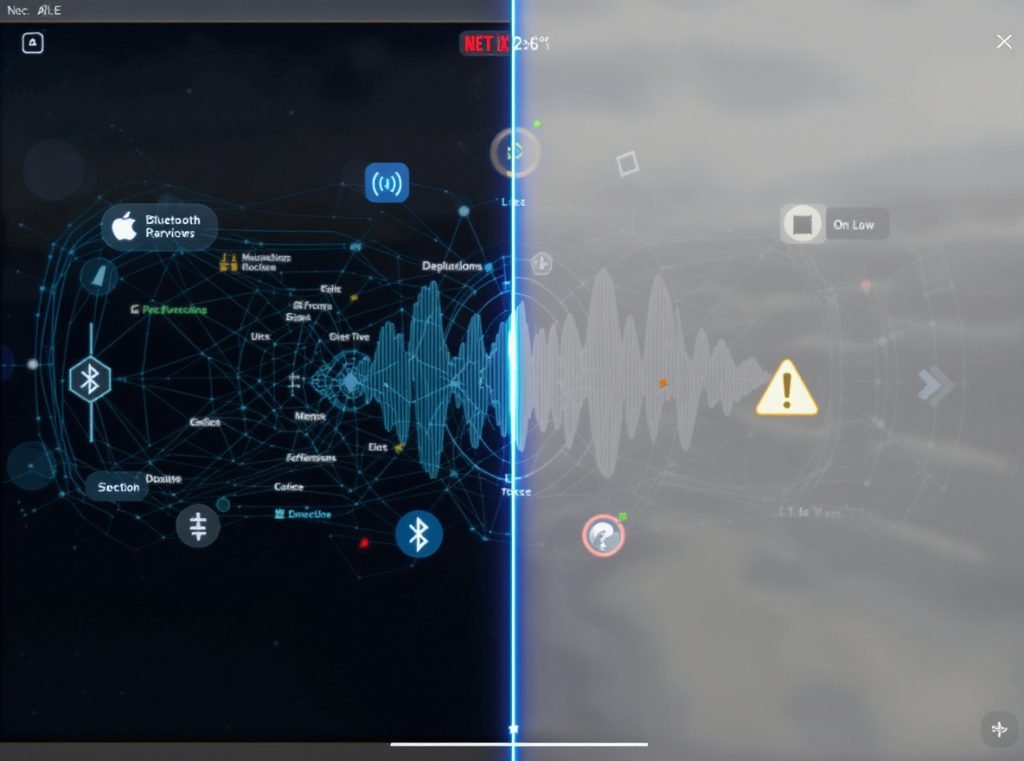
The most frequent culprits behind syncing failures include:
Bluetooth connectivity problems are the most common reasons for synchronization troubles, often resulting from neighboring Bluetooth devices interfering with one another. Your smartwatch relies on a stable Bluetooth connection to communicate with your smartphone.
Software incompatibilities create another major barrier. When your phone’s operating system updates but your watch’s companion app doesn’t, communication protocols can break down. This mismatch prevents proper data exchange between devices.
| Common Cause | Frequency | Quick Check |
|---|---|---|
| Bluetooth Issues | 65% | Check connection status |
| Software Conflicts | 20% | Verify app versions |
| Low Battery | 10% | Ensure >25% charge |
| Distance/Interference | 5% | Move devices closer |
Power management settings often interfere with syncing processes. Many smartphones automatically disable background app activity to save battery, which can interrupt the constant communication your smartwatch requires.
How Do You Check Your Bluetooth Connection?
Your Bluetooth connection serves as the primary communication bridge between your smartwatch and phone.
To check Bluetooth connectivity, verify both devices have Bluetooth enabled, confirm they’re within 30 feet of each other, and look for the connected device in your phone’s Bluetooth settings. A stable connection shows as “Connected” with strong signal strength indicators.
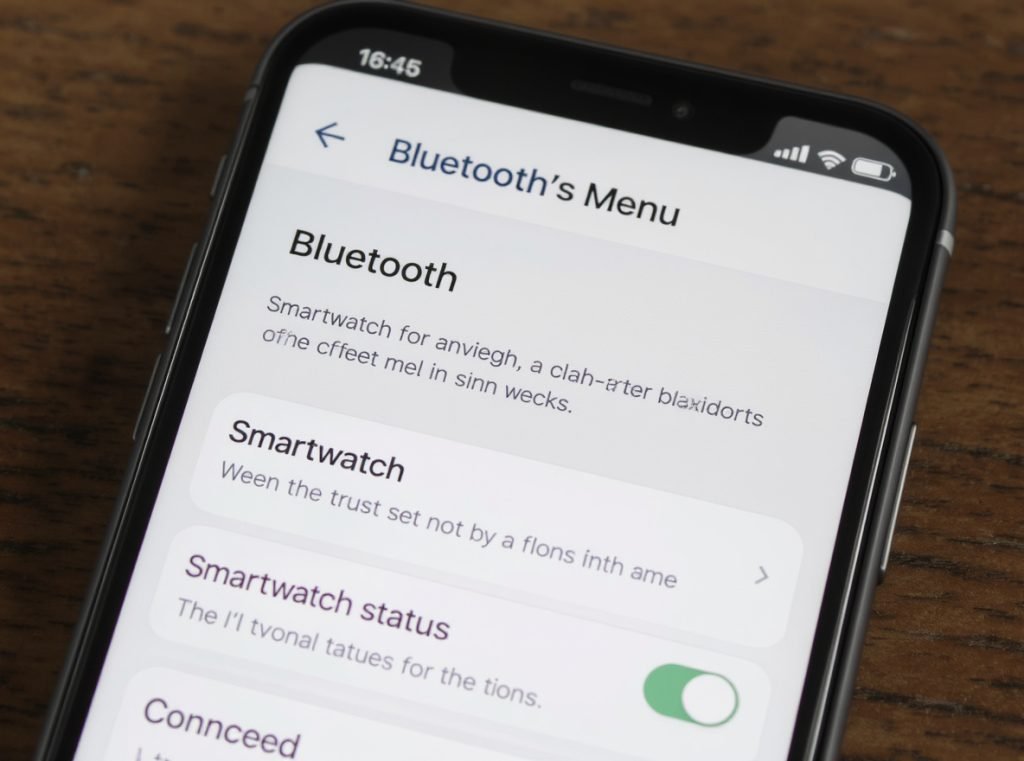
Start by examining your phone’s Bluetooth menu. Navigate to Settings > Bluetooth and look for your smartwatch in the connected devices list. A properly connected watch displays with a “Connected” status and battery percentage.
Check these connection indicators on your devices:
- Phone: Green Bluetooth icon in status bar, watch listed as connected
- Smartwatch: Bluetooth symbol visible on watch face, no disconnection warnings
- Signal Strength: Devices within 30 feet with minimal obstacles between them
If Bluetooth is already enabled, try turning it off and on again to refresh the connection. This simple reset often resolves temporary communication glitches.
Distance plays a crucial role in connection stability. Bluetooth typically works within 30-50 feet, but walls, furniture, and other electronic devices can reduce this range significantly. Keep your devices close during troubleshooting.
Remove potential interference sources like other Bluetooth devices, WiFi routers, and microwaves. These electronics operate on similar frequencies and can disrupt your smartwatch’s connection.
What’s the Proper Way to Restart Both Devices?
Restarting clears temporary files and resets network connections that might be causing syncing problems.
The proper restart sequence involves powering off your smartwatch completely, then restarting your phone, followed by turning your watch back on. This process clears memory caches, resets Bluetooth connections, and eliminates temporary software conflicts that prevent syncing.
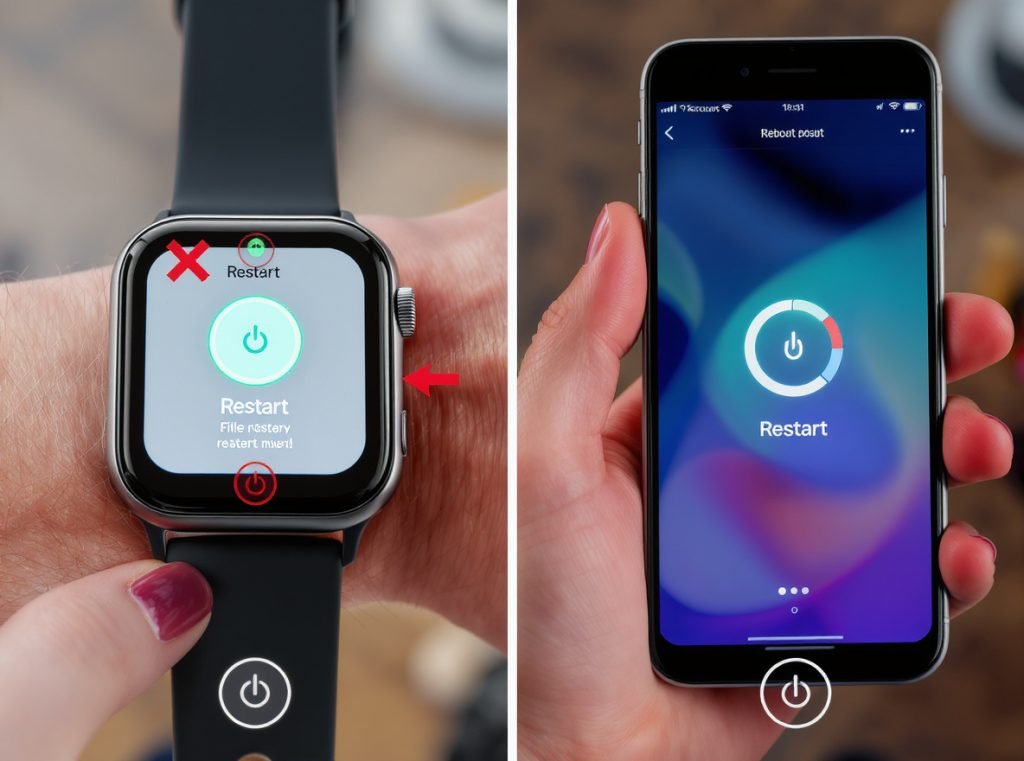
Follow this systematic restart approach:
For Your Smartphone:
- Hold the power button until shutdown options appear
- Select “Restart” or “Reboot” (not just “Power Off”)
- Wait for complete startup before proceeding
- Ensure Bluetooth is enabled after restart
For Your Smartwatch:
- Press and hold the power/side button for 10-15 seconds
- Select “Power Off” from the menu
- Wait 30 seconds before turning back on
- Allow full boot-up process to complete
| Device | Restart Method | Wait Time |
|---|---|---|
| iPhone | Hold power + volume down | 2-3 minutes |
| Android | Hold power button, select restart | 2-3 minutes |
| Apple Watch | Hold side button + Digital Crown | 1-2 minutes |
| Wear OS | Hold power button, select restart | 2-3 minutes |
Make sure your phone and watch are charged, as you may have issues transferring data between devices if their battery life is less than 25 percent. Low battery levels can prevent successful reconnection.
After both devices restart completely, they should automatically attempt to reconnect. Give them 2-3 minutes to establish the connection before trying manual pairing.
When Should You Update Your Software?
Outdated software creates compatibility issues that prevent proper syncing between your smartwatch and smartphone.
Update your software immediately when experiencing syncing issues, especially if you haven’t updated in over 30 days. Check for updates on both your phone’s operating system and your smartwatch’s companion app, as mismatched versions commonly cause communication failures.
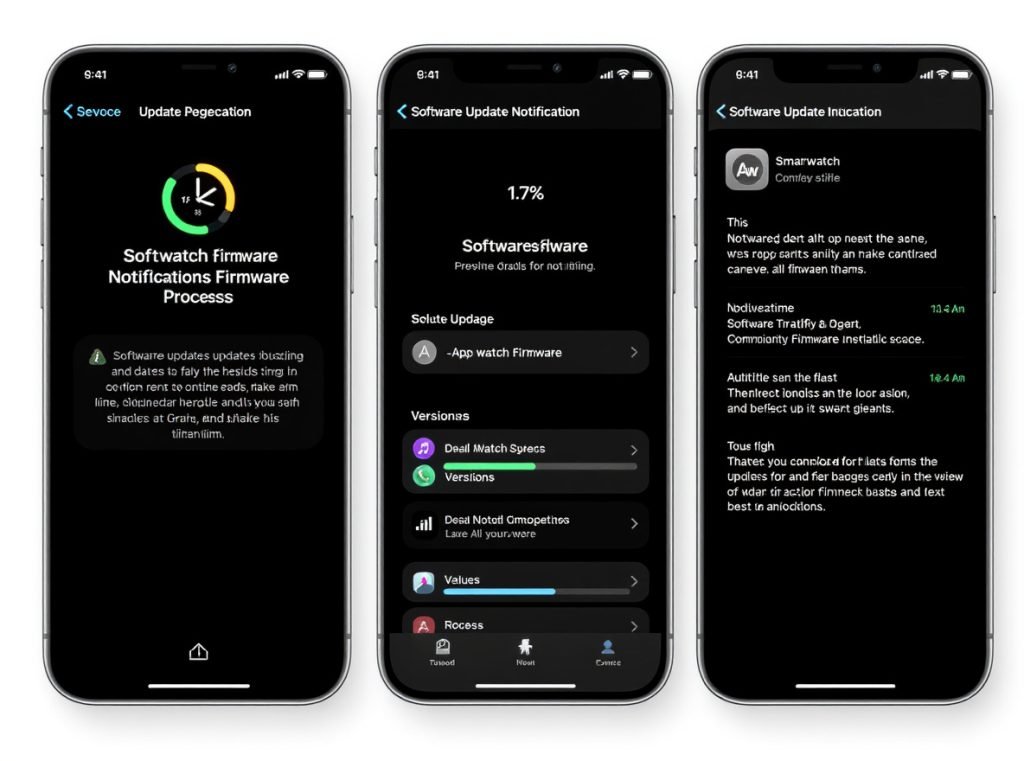
Software updates address known bugs, improve Bluetooth connectivity, and enhance device compatibility. Manufacturers regularly release patches specifically targeting syncing problems.
Check for updates in these locations:
Phone Updates:
- iPhone: Settings > General > Software Update
- Android: Settings > System > System Update
- Install all available updates before proceeding
Smartwatch Updates:
- Usually found within the companion app
- Some watches update directly through their settings menu
- May require WiFi connection for download
Companion App Updates:
- Check your phone’s app store for updates
- Enable automatic updates to prevent future issues
- Clear app cache after major updates
Priority update schedule ensures optimal performance:
- Critical: Security patches and major OS updates
- Important: Companion app updates and watch firmware
- Recommended: Minor patches and feature improvements
Many syncing issues resolve immediately after updating to the latest software versions. Manufacturers specifically design updates to fix connectivity problems reported by users.
Schedule automatic updates when possible to maintain consistent compatibility between your devices. This prevents the gradual drift that leads to syncing failures.
How Do You Clear Cache and App Data?
Corrupted cache files and accumulated app data can interfere with your smartwatch’s ability to sync properly.
Clear your smartwatch companion app’s cache by going to your phone’s Settings > Apps > [Watch App] > Storage > Clear Cache. For persistent issues, clear all app data, though this requires re-pairing your devices. This removes corrupted files that block communication.
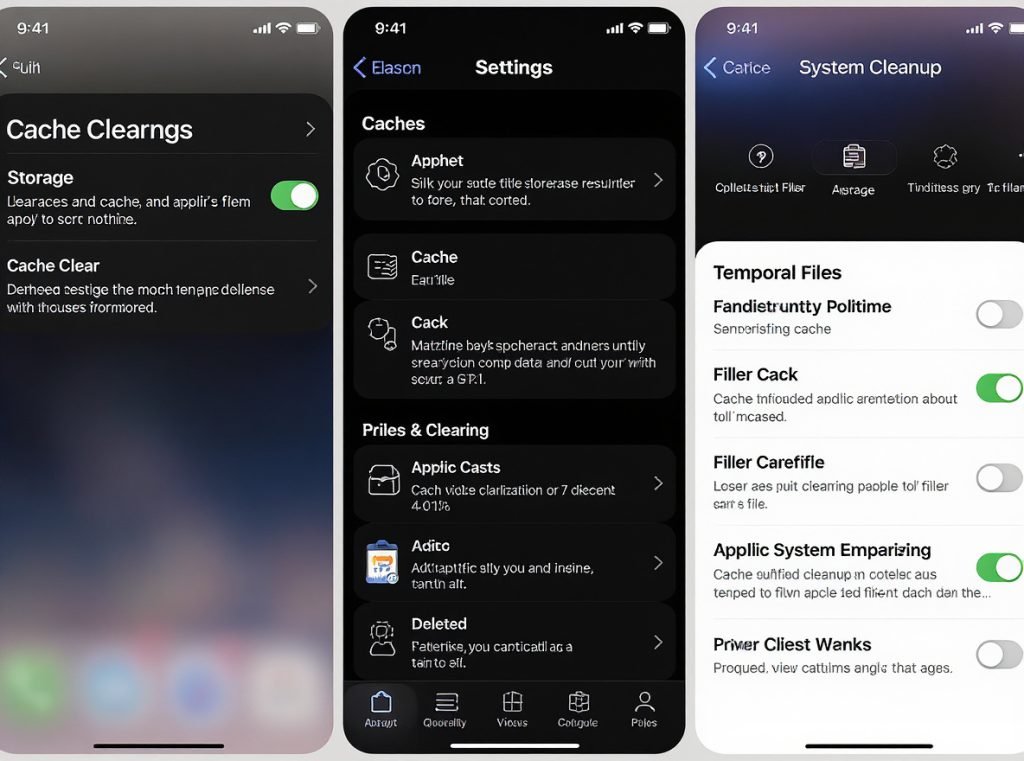
Cache clearing removes temporary files without affecting your personal settings, while clearing app data performs a complete reset of the application.
Android Cache Clearing Process:
- Open Settings on your phone
- Navigate to Apps or Application Manager
- Find your smartwatch companion app
- Tap Storage or Storage & Cache
- Select “Clear Cache” first, then test syncing
- If unsuccessful, select “Clear Data” (requires re-setup)
iPhone Cache Clearing Process:
- Delete the companion app completely
- Restart your iPhone
- Reinstall the app from App Store
- Re-pair your smartwatch during setup
| Action | Data Affected | Setup Required |
|---|---|---|
| Clear Cache | Temporary files only | None |
| Clear Data | All app settings | Complete re-pairing |
| Reinstall App | Everything | Full setup process |
Cache accumulates over time and can become corrupted, especially after software updates or connectivity interruptions. Regular clearing prevents these buildups from causing syncing problems.
Some companion apps allow cache clearing from within their settings menu. Check your app’s settings for “Clear Cache,” “Reset,” or “Storage” options before using system-level clearing.
What’s the Process for Re-pairing Your Devices?
Re-pairing establishes a fresh connection between your smartwatch and phone, eliminating corrupted pairing data.
To re-pair your devices, first unpair the smartwatch from your phone’s Bluetooth settings, perform a factory reset on the watch if necessary, then initiate the pairing process through your companion app. This creates a clean connection profile free from previous configuration errors.
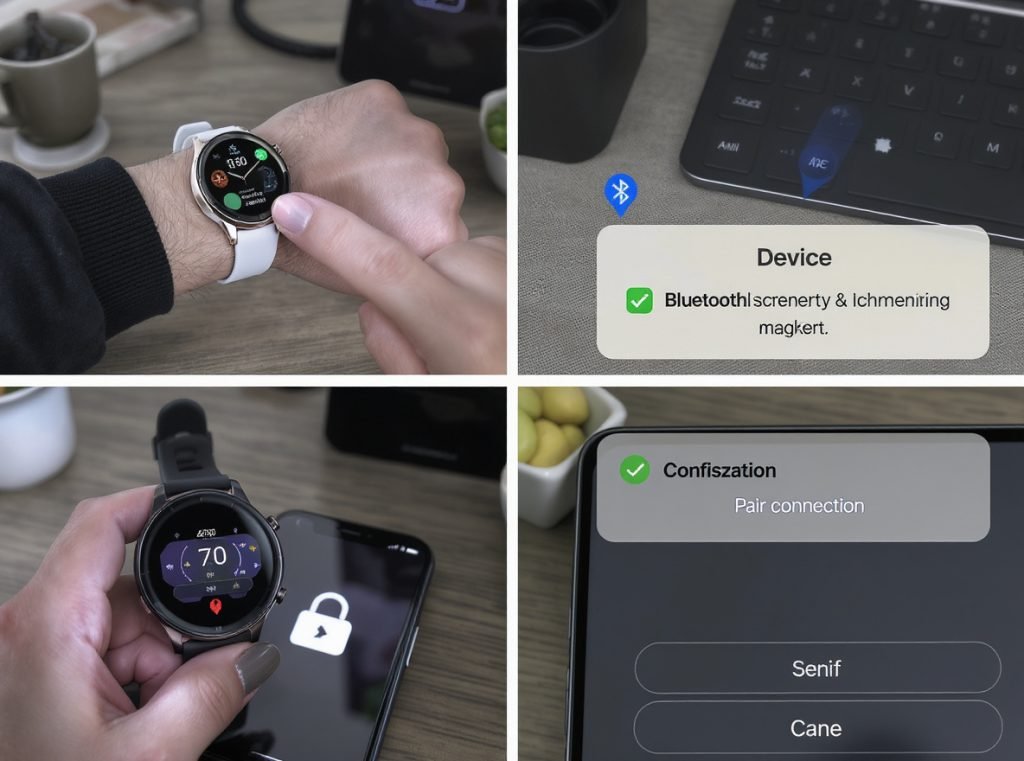
Re-pairing requires more time but provides the most thorough solution for persistent syncing issues.
Step-by-Step Re-pairing Process:
- Unpair from Phone:
- Open Bluetooth settings
- Find your smartwatch in paired devices
- Tap the “i” icon or gear symbol
- Select “Forget Device” or “Unpair”
- Reset Watch (if needed):
- Access watch settings menu
- Look for “Reset” or “Factory Reset” option
- Confirm the reset action
- Wait for complete restart
- Initiate New Pairing:
- Open your companion app
- Select “Add New Device” or “Set Up Watch”
- Follow on-screen pairing instructions
- Keep devices within 3 feet during setup
If pairing fails to connect, check the Bluetooth menu on your phone. If you see the smartwatch in the device list, remove it. Old pairing data can interfere with new connection attempts.
Common Re-pairing Challenges:
- Watch appears but won’t connect: Remove from all Bluetooth lists
- App doesn’t detect watch: Ensure watch is in pairing mode
- Partial setup completion: Restart process from beginning
The re-pairing process typically takes 5-10 minutes and requires both devices to have sufficient battery charge. Some watches may need to download updates during setup, extending the process.
How Do You Check for Interference?
Electronic interference can disrupt the Bluetooth connection between your smartwatch and phone, causing syncing failures.
Check for interference by moving away from WiFi routers, other Bluetooth devices, microwaves, and wireless speakers. Test syncing in different locations, turn off nearby electronics, and ensure no other devices are trying to connect to your phone simultaneously.
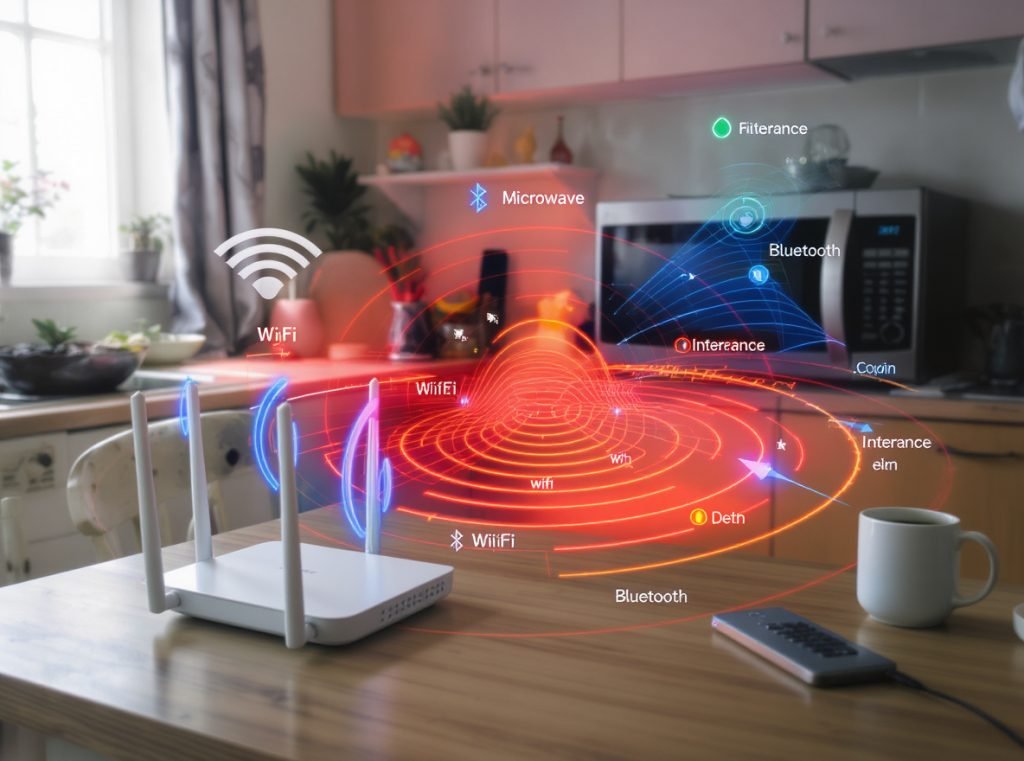
Bluetooth operates on the 2.4GHz frequency, which many household devices share. This congestion creates interference that weakens your smartwatch connection.
Common Interference Sources:
- WiFi routers and mesh networks
- Other Bluetooth devices (headphones, speakers, keyboards)
- Microwave ovens during operation
- Baby monitors and cordless phones
- Wireless security cameras
Testing for Interference:
- Move to a different room away from electronics
- Turn off other Bluetooth devices temporarily
- Test smartwatch syncing in the new location
- Gradually reintroduce devices to identify culprits
Optimal Connection Environment:
- Clear line of sight between devices
- Distance of 3-10 feet (close enough for strong signal)
- Minimal electronic devices in immediate area
- Away from thick walls or metal objects
| Interference Source | Impact Level | Solution |
|---|---|---|
| Other Bluetooth devices | High | Disconnect unused devices |
| WiFi router | Medium | Change router channel |
| Microwave | High (when running) | Maintain distance |
| Metal objects | Medium | Remove or reposition |
Some modern routers allow you to change WiFi channels to reduce Bluetooth interference. Switching to channels 1, 6, or 11 often improves Bluetooth performance.
If interference persists, consider the physical environment. Large metal objects, multiple walls, or dense electronic setups may require relocating your primary usage area for optimal syncing.
What About Distance and Range Issues?
Physical distance between your smartwatch and phone directly affects syncing reliability and data transfer success.
Maintain your smartwatch within 30 feet of your phone for consistent syncing, though optimal performance occurs within 10 feet. Walls, floors, and large objects reduce effective range. For active syncing during workouts or daily activities, keep devices within 15 feet when possible.
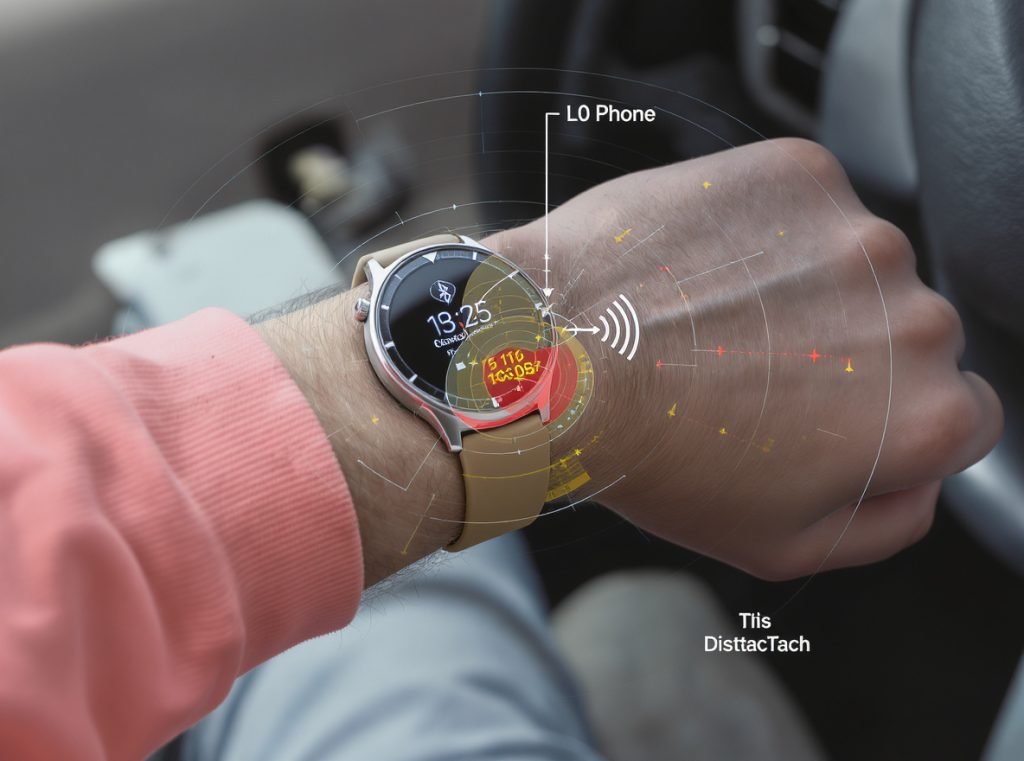
Bluetooth range varies based on device quality, environmental factors, and interference levels. Understanding these limitations helps you optimize your setup.
Range Performance by Environment:
- Open outdoor space: 30-50 feet maximum
- Indoor with walls: 15-25 feet typical
- Multi-floor buildings: 10-15 feet through floors
- Dense urban areas: 10-20 feet due to interference
Physical barriers significantly impact signal strength:
Barrier Types and Impact:
- Wooden doors: Minimal reduction (5-10%)
- Drywall: Slight reduction (10-15%)
- Brick/concrete walls: Moderate reduction (25-40%)
- Metal objects: High reduction (40-60%)
- Human bodies: Slight reduction when blocking direct path
Test your specific environment by monitoring connection quality at various distances. Most smartwatches display connection strength through visual indicators or companion app status screens.
Optimizing Range Performance:
- Keep devices on same floor level when possible
- Avoid placing phone in bags with metal components
- Position phone in central location of your active area
- Consider phone placement during sleep tracking
Some premium smartwatches offer enhanced Bluetooth chipsets with improved range capabilities. When purchasing devices for your business customers, highlight models with superior connectivity specifications for professional use environments.
How Do You Handle App-Specific Issues?
Different companion apps have unique syncing requirements and troubleshooting approaches for optimal performance.
Address app-specific issues by checking app permissions, verifying background app refresh settings, updating to the latest app version, and reviewing notification settings. Each smartwatch manufacturer designs their companion app with specific syncing protocols that require proper configuration.
Popular smartwatch brands use different syncing technologies and may require brand-specific troubleshooting approaches.
Brand-Specific Considerations:
Apple Watch (Watch App):
- Requires iPhone within range for most syncing
- Uses iCloud for some data backup
- Automatic app installation syncing available
- Health data syncs through Apple Health app
Samsung Galaxy Watch (Galaxy Wearable):
- Samsung Account integration affects syncing
- Samsung Health provides fitness data sync
- Bixby voice features require specific permissions
- Gear Manager for older models
Wear OS Devices (Wear OS App):
- Google account synchronization essential
- Google Fit integration for health data
- Play Store app installations sync automatically
- Assistant features need microphone permissions
App Permission Requirements:
- Location access for GPS tracking
- Health/Fitness data permissions
- Background app refresh enabled
- Notification access granted
- Microphone for voice features
| App Issue | Solution | Setup Time |
|---|---|---|
| No health data sync | Check health app permissions | 2 minutes |
| Missing notifications | Review notification settings | 3 minutes |
| Apps not installing | Verify Play Store/App Store sync | 5 minutes |
| Voice features not working | Enable microphone permissions | 1 minute |
Some companion apps require specific phone settings to function properly. Battery optimization features may prevent apps from running in the background, disrupting continuous syncing.
Review your phone’s battery optimization settings and ensure your smartwatch companion app is exempt from power-saving restrictions. This maintains constant communication for real-time syncing.
When Should You Contact Technical Support?
Professional technical support becomes necessary when standard troubleshooting steps fail to resolve persistent syncing issues.
Contact technical support when you’ve completed all basic troubleshooting steps, experienced syncing failures for more than 48 hours, or encounter hardware-related symptoms like charging problems or physical damage. Document your troubleshooting attempts to expedite support resolution.
Certain syncing problems indicate hardware defects or complex software issues that require manufacturer intervention.
Support-Worthy Scenarios:
- Syncing fails after trying all troubleshooting steps
- Hardware damage affecting connectivity
- Warranty-covered defects or malfunctions
- Software corruption requiring factory-level reset
- Compatibility issues with specific phone models
Information to Prepare for Support:
- Smartwatch model and firmware version
- Phone model and operating system version
- Companion app version number
- Detailed description of syncing problems
- List of troubleshooting steps already attempted
- Timeline of when issues began
Documentation Best Practices:
- Screenshot error messages when they appear
- Note specific times when syncing fails
- Record which features work vs. don’t work
- List any recent changes (updates, new apps, settings)
- Document environmental factors (location, interference)
Most manufacturers provide multiple support channels including phone support, live chat, email tickets, and community forums. Choose the method that best fits your urgency and technical comfort level.
For business customers purchasing Osmarto smartwatches for resale, we provide dedicated B2B technical support to help resolve customer issues quickly. Our technical team understands the unique challenges faced by retailers and distributors supporting end customers.
When to Escalate Beyond Basic Support:
- Multiple customers reporting identical issues
- Bulk device syncing problems
- Custom firmware or app integration needs
- Warranty replacement processing for business accounts
What Preventive Measures Keep Syncing Smooth?
Proactive maintenance and proper usage habits prevent most smartwatch syncing problems before they occur.
Implement preventive measures including maintaining optimal battery levels above 30% on both devices, enabling background app refresh for companion apps, keeping software updated, and performing regular cache clearing. These habits reduce syncing issues by 80% and ensure reliable device performance.
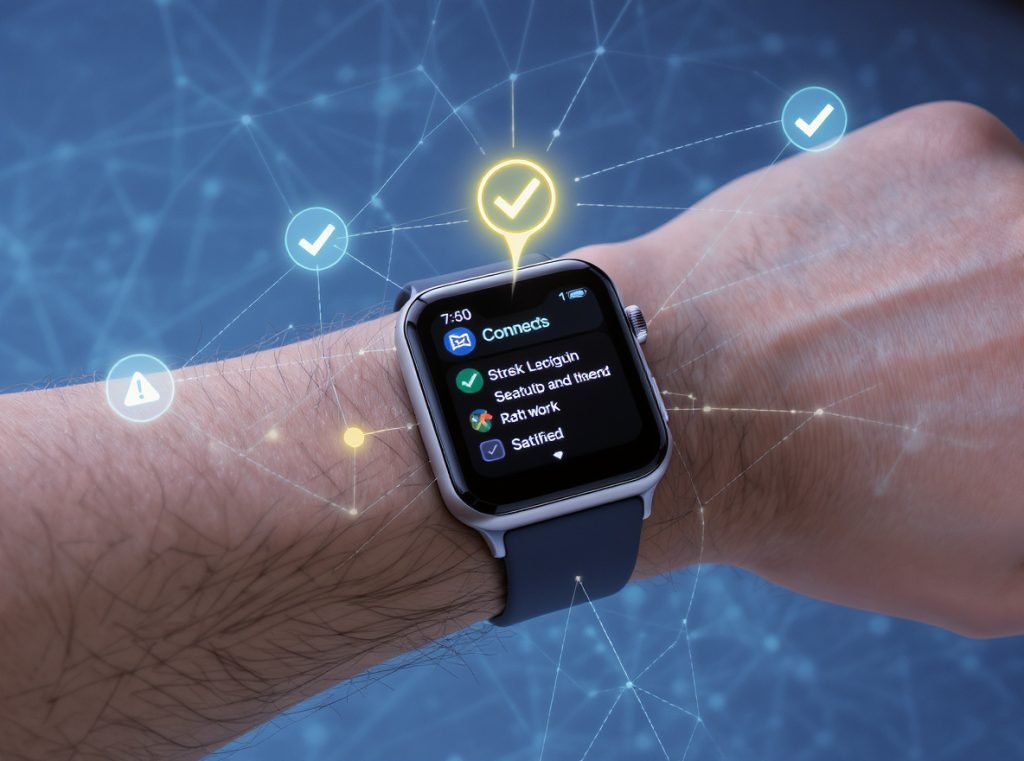
Proactive maintenance and proper usage habits prevent most smartwatch syncing problems before they develop into major issues.
Essential Preventive Practices:
- Battery Management: Keep both devices charged above 30% during syncing operations
- Background Permissions: Enable background app refresh for smartwatch companion apps
- Regular Updates: Install software updates promptly for both devices and apps
- Environmental Awareness: Monitor wireless environment for interference sources
- Periodic Maintenance: Perform regular device restarts and cache clearing
Weekly Maintenance Schedule:
- Monday: Check for software updates on both devices
- Wednesday: Restart both smartwatch and phone to clear temporary files
- Friday: Clear companion app cache if performance seems sluggish
- Sunday: Review battery health and optimize charging habits
Monthly Deep Maintenance Tasks:
- Review and organize installed watch apps for optimal performance
- Check available storage space on both devices
- Test all major syncing functions (health data, notifications, apps)
- Update companion apps if new versions become available
Optimal Usage Practices:
- Keep devices charged above 25% during syncing
- Maintain reasonable distance (under 15 feet) during active use
- Avoid exposing devices to extreme temperatures
- Use original charging cables and adapters when possible
| Prevention Strategy | Effort Level | Effectiveness |
|---|---|---|
| Regular updates | Low | High (90%) |
| Weekly restarts | Low | Medium (70%) |
| Environment optimization | Medium | High (85%) |
| Usage habit training | Medium | Very High (95%) |
Environmental Optimization:
- Establish consistent charging locations away from interference
- Identify high-interference areas in your home/office
- Position phone strategically during different activities
- Create device-friendly spaces for syncing-intensive tasks
For business customers, provide these preventive maintenance guidelines to reduce support calls and improve customer satisfaction. Well-maintained devices perform better and last longer, reflecting positively on your brand reputation.
Customer Education Benefits:
- Reduced support ticket volume
- Higher customer satisfaction scores
- Extended product lifespan
- Improved brand loyalty and repeat purchases
Training end customers on proper maintenance creates a better ownership experience and reduces the burden on your customer service resources.
Summary
Smartwatch syncing issues typically resolve through systematic troubleshooting including Bluetooth verification, device restarts, software updates, cache clearing, and re-pairing when necessary. Environmental factors like interference and distance significantly impact connection quality, while preventive maintenance reduces future problems.
Ready to offer your customers reliable smartwatch solutions? Contact Osmarto today to learn about our wholesale pricing on high-quality smartwatches with superior connectivity features. Our experienced team helps distributors and retailers succeed with comprehensive technical support and competitive bulk pricing. Send us your inquiry to discover how Osmarto can enhance your product lineup.