Skip to content
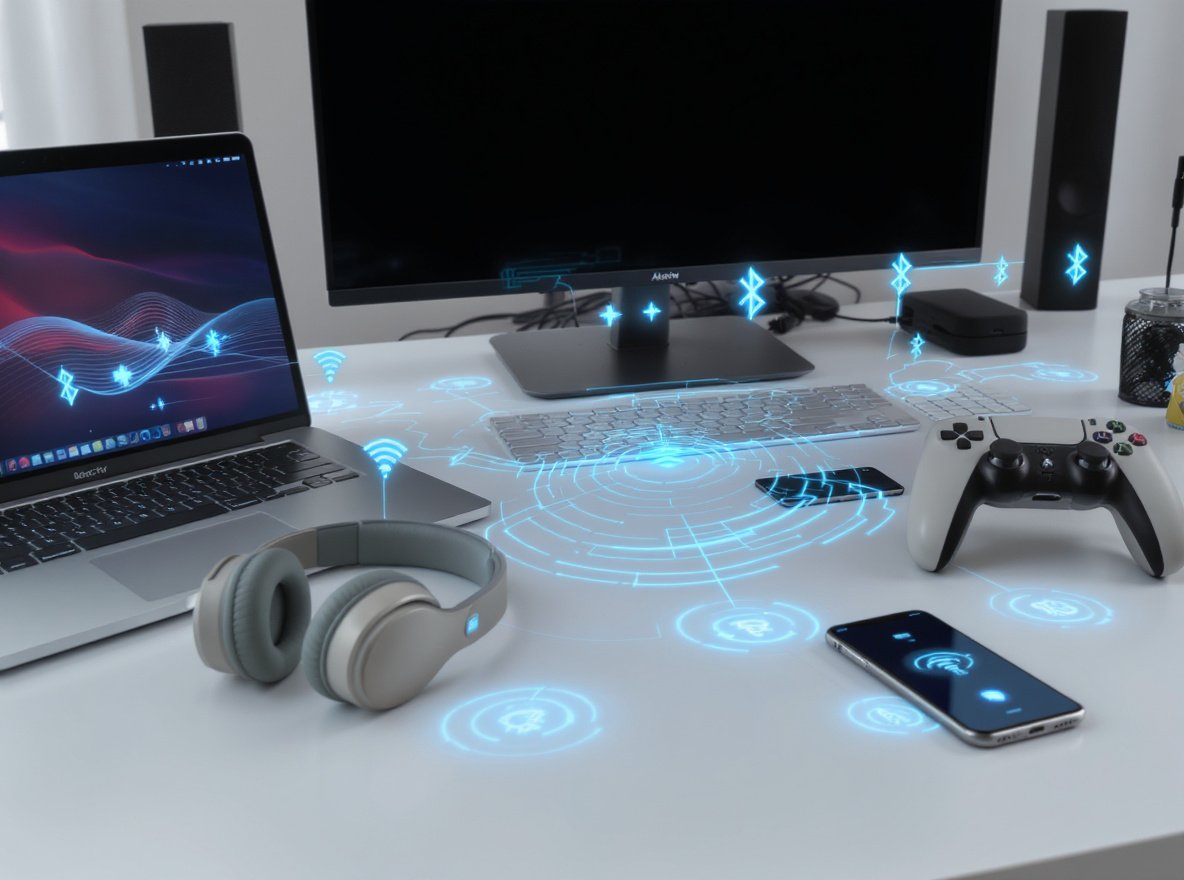
Struggling to connect your Bluetooth headphones across different devices? Many users face pairing challenges when switching between laptops, smart TVs, and gaming consoles, leading to audio frustration and connection failures.
The key to successful Bluetooth pairing is understanding each device’s specific connection process. Windows laptops use Settings > Devices, Macs offer multiple connection methods including Control Center, smart TVs vary by manufacturer but generally use Audio settings, and PS5 requires Bluetooth adapters since direct pairing isn’t supported.
Ready to master wireless audio connections across all your devices? Let’s explore the complete pairing process for each platform.
How Do I Connect Bluetooth Headphones to My Windows Laptop?
Windows laptops provide straightforward Bluetooth connectivity, but ensuring proper setup is crucial for reliable connections.
Windows supports Bluetooth headphone pairing through Settings > Devices > Bluetooth & other devices. Enable Bluetooth, put headphones in pairing mode (hold power button until blinking light appears), click “Add Bluetooth or other device,” select Bluetooth, and choose your headphones from the list.

Preparing Your Windows System
Before starting, ensure your laptop has Bluetooth capability. Most laptops manufactured after 2015 include built-in Bluetooth, but older models may need USB Bluetooth adapters.
Navigate to Windows settings by pressing “Win + I” or clicking the Start menu and selecting the gear icon. Look for “Devices” in Windows 10 or “Bluetooth & devices” in Windows 11.
Verify Bluetooth is enabled by checking the toggle switch. If disabled, turn it on and allow Windows to initialize the Bluetooth module.
Activating Headphone Pairing Mode
Put your headphones into pairing mode using manufacturer-specific methods:
- Most brands: Hold power button for 3-5 seconds until you see blinking blue/white light
- Sony models: Press and hold power + Bluetooth buttons simultaneously
- Bose headphones: Slide power switch to Bluetooth position
- JBL models: Hold power button until voice prompt says “pairing”
The blinking light pattern indicates successful pairing mode activation. Some headphones also provide audio confirmations.
Completing Windows Connection
Click “Add Bluetooth or other device” in your Bluetooth settings. Select “Bluetooth” from the device type options to start scanning.
Your headphones should appear in the available devices list within 10-15 seconds. Click on your headphones’ name to initiate pairing.
| Connection Step | Expected Time | Troubleshooting |
|---|---|---|
| Device scanning | 10-15 seconds | Ensure headphones are in pairing mode |
| Pairing process | 30-60 seconds | Move devices closer (within 3 feet) |
| Driver installation | 1-2 minutes | Allow Windows to install audio drivers |
| Connection confirmation | Immediate | Test audio playback |
Some devices may require a Bluetooth password, typically “0000” or found in your headphones’ manual. Windows will remember this pairing for automatic future connections.
How Do I Pair Bluetooth Headphones with My Mac?
Mac computers offer multiple intuitive methods for Bluetooth headphone connections, making the process more flexible than other platforms.
Macs provide three connection methods: System Settings > Bluetooth (primary method), Control Center Bluetooth menu (quick access), or menu bar Bluetooth icon (fastest). All methods require enabling Bluetooth and putting headphones in pairing mode before selecting them from available device lists.

Method 1: System Settings Approach
Open System Settings from the Apple menu or press “Cmd + Space” and type “System Settings.” For older macOS versions, look for “System Preferences.”
Navigate to “Bluetooth” in the sidebar. Ensure Bluetooth is enabled – you’ll see “Bluetooth: On” status with a list of available devices.
Put your headphones in pairing mode. They should appear in the devices list within seconds, often showing signal strength indicators.
Method 2: Control Center Quick Access
Click the Control Center icon in your menu bar (looks like two toggle switches). Select the Bluetooth section from the expanded menu.
Your Mac will display currently connected devices and show “Bluetooth Settings” option. Click this to access the main Bluetooth panel.
This method provides faster access without navigating through System Settings, ideal for frequent device switching.
Method 3: Menu Bar Bluetooth Icon
The Bluetooth icon in your menu bar offers the quickest connection method. Click the icon to see a dropdown menu of available and connected devices.
If you don’t see the Bluetooth icon, enable it through System Settings > Control Center > Bluetooth and select “Show in Menu Bar.”
AirPods-Specific Pairing Process
For AirPods or other Apple audio devices:
- Place AirPods in charging case and open the lid
- Press and hold the button on the case back until status light flashes white
- Select AirPods from your Mac’s Bluetooth device list
- Confirmation appears when successfully connected
AirPods benefit from Apple’s seamless switching technology, automatically connecting to your most recently used Apple device.
How Do I Connect Bluetooth Headphones to My Smart TV?
Smart TV Bluetooth support varies significantly by manufacturer and model year, making compatibility checking essential before attempting connections.
Modern smart TVs (2018+) generally support Bluetooth through Settings > Sound/Audio > Bluetooth devices. Navigate to audio settings, enable Bluetooth pairing, put headphones in pairing mode, and select them from the TV’s device list. Samsung TVs offer “Dual Audio” for connecting two devices simultaneously.

Checking TV Bluetooth Compatibility
Not all smart TVs include Bluetooth audio support, even recent models. Check your TV’s settings menu for Bluetooth options under Sound, Audio, Network, or Device sections.
TV brand Bluetooth support patterns:
- Samsung (2016+): Excellent Bluetooth audio support with advanced features
- LG webOS (2017+): Strong Bluetooth connectivity across model lines
- Sony Android TV (2015+): Variable support depending on specific model series
- TCL Roku TVs: Limited Bluetooth audio, mainly for remotes
- Vizio models: Mixed support based on manufacture year
Universal Smart TV Pairing Process
Access your TV’s main settings using your remote control. Look for sections labeled “Sound,” “Audio,” “Bluetooth,” “Wireless,” or “Connections.”
Enable Bluetooth functionality if currently disabled. Some TVs show this as “Bluetooth Audio” or “Wireless Audio Device” specifically.
Select “Add Device,” “Pair New Device,” or “Scan for Devices.” Your TV enters discovery mode and displays available Bluetooth devices.
Put your headphones in pairing mode and wait for them to appear on your TV screen. Select your headphones and confirm pairing when prompted.
Brand-Specific Instructions
Samsung Smart TV Process:
- Press Home button on remote
- Navigate to Settings > Sound > Sound Output > Bluetooth Speaker List
- Press pairing button on headphones
- Select device and choose “Pair and Connect”
- Samsung 2022+ models support “Dual Audio” for two simultaneous connections
Sony Android TV Steps:
- Open Settings > Device Preferences > Remotes and Accessories
- Select “Add Accessory” or navigate to Bluetooth settings
- Choose “Pair Accessory” when headphones appear
- Confirm connection and test audio output
LG webOS Instructions:
- Press Settings on remote > All Settings > Sound > Bluetooth
- Turn on Bluetooth and select “Device List”
- Choose your headphones when they appear
- Complete pairing process
Alternative Solutions for Non-Bluetooth TVs
| Solution Type | Price Range | Setup Difficulty | Audio Quality |
|---|---|---|---|
| Bluetooth Transmitter | $20-50 | Easy | Good to Excellent |
| RF Wireless System | $30-100 | Moderate | Excellent |
| USB Bluetooth Adapter | $15-30 | Easy | Good |
Bluetooth transmitters connect to your TV’s audio output (3.5mm, optical, or RCA) and create Bluetooth connectivity for any headphones. Popular models include Avantree Oasis Plus and TaoTronics TT-BA07.
How Do I Connect Bluetooth Headphones to PS5?
PlayStation 5 presents unique challenges for Bluetooth headphone users due to Sony’s design decisions regarding wireless audio bandwidth management.
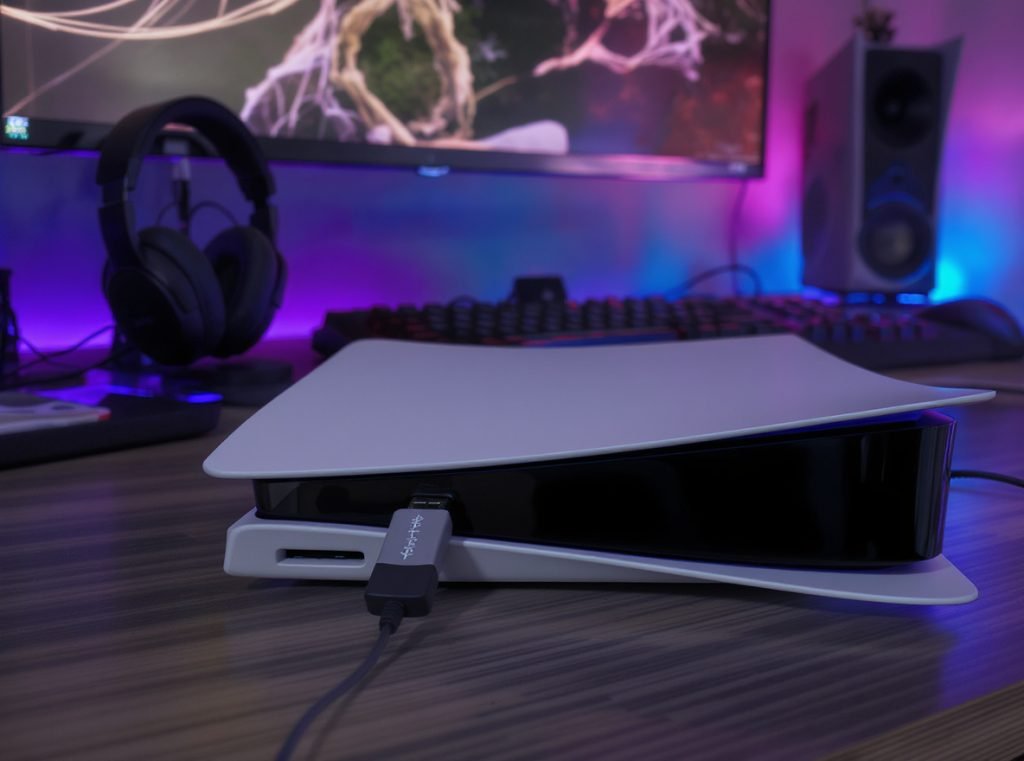
PS5 doesn’t support direct Bluetooth headphone pairing through system settings due to bandwidth limitations with DualSense controllers. Solutions include USB Bluetooth adapters, connecting through your TV’s Bluetooth, or using the controller’s 3.5mm port. Official PlayStation headsets use proprietary 2.4GHz wireless dongles.
Understanding PS5 Bluetooth Limitations
Sony disabled standard Bluetooth headphone support to prioritize DualSense controller performance and reduce audio latency. The PS5’s Bluetooth bandwidth is reserved for controllers and other accessories.
Traditional Bluetooth audio introduces 40-200ms latency, which significantly impacts gaming experience. Sony’s decision prioritizes competitive gaming performance over convenience.
The console does support Bluetooth for keyboards, mice, and controllers, but audio devices require workaround solutions.
Official PlayStation Compatible Devices
Sony-designed headsets work seamlessly with PS5:
- PlayStation PULSE 3D Wireless Headset: Uses proprietary USB dongle
- INZONE Gaming Headsets: Professional gaming-focused models
- PlayStation Gold/Platinum Headsets: Older models with PS5 compatibility
These devices use dedicated 2.4GHz wireless technology instead of Bluetooth, providing lower latency and better performance.
Workaround Method 1: USB Bluetooth Adapter
Purchase a Bluetooth 5.0 (or newer) USB adapter specifically designed for audio. Not all USB Bluetooth adapters support audio transmission.
Recommended Adapters:
- Creative BT-W4: Low latency, PS5 tested
- Avantree DG80: aptX Low Latency support
- ASUS USB-BT500: Reliable audio performance
- Twelve South AirFly Pro: Popular choice for gaming
Setup Process:
- Connect adapter to PS5 USB port (front or rear)
- Put adapter in pairing mode (usually hold button for 3-5 seconds)
- Activate headphone pairing mode simultaneously
- Wait for connection confirmation (usually LED color change)
- Navigate to PS5 Settings > Sound > Audio Output
- Select USB adapter as output device
- Choose “All Audio” under “Output to Headphones”
Workaround Method 2: TV Bluetooth Connection
If your smart TV supports Bluetooth audio, connect headphones directly to the TV instead of the PS5.
This method routes PS5 audio through HDMI to your TV, then wirelessly to your headphones. Audio quality depends on your TV’s Bluetooth implementation.
Setup Steps:
- Follow your TV’s Bluetooth pairing process (covered in previous section)
- Ensure PS5 audio outputs through HDMI to TV
- Adjust TV audio settings to prioritize Bluetooth output
- Test for audio sync issues during gameplay
Workaround Method 3: Wired Connection
Use the 3.5mm auxiliary port on the bottom of the DualSense controller for direct wired connection.
This method provides zero latency but limits movement range. Many wireless headphones include detachable 3.5mm cables for wired use.
Benefits of wired connection:
- No latency issues
- No battery drain on headphones
- Guaranteed compatibility
- No additional equipment needed
Optimizing PS5 Bluetooth Audio Performance
Adapter Selection Criteria:
- Bluetooth 5.0+ for improved range and stability
- aptX Low Latency codec support (sub-40ms delay)
- USB-A compatibility with PS5
- Audio-specific design (not general data adapters)
Performance Optimization Tips:
- Keep adapter within 3 feet of headphones during gaming
- Avoid interference from WiFi routers and other 2.4GHz devices
- Update PS5 system software regularly for improved compatibility
- Test latency with rhythm games to assess audio delay
- Consider headphones with low-latency codec support
Gaming performance varies significantly based on headphone and adapter combinations. Professional gaming headphones with dedicated low-latency modes typically provide the best results.
What Should I Do If My Bluetooth Headphones Won’t Pair?
Connection failures occur frequently across all devices, but systematic troubleshooting resolves most pairing issues quickly and effectively.
Common pairing problems stem from device compatibility issues, signal interference, outdated software, battery levels, or previous connection conflicts. Start with basic solutions: charge headphones fully, clear previous pairings, stay within 3 feet during pairing, and restart both devices before attempting advanced troubleshooting.

Identifying Common Pairing Obstacles
Device Compatibility Issues:
Check if your headphones support the required Bluetooth profiles for your device. Older headphones may lack modern codec support needed for newer devices.
Signal Interference:
WiFi routers, microwaves, and other 2.4GHz devices can disrupt Bluetooth signals. Move to different locations and test connectivity away from potential interference sources.
Battery-Related Problems:
Low battery levels prevent proper pairing mode activation. Charge headphones to at least 50% before attempting connections.
Step-by-Step Basic Troubleshooting
Level 1: Simple Fixes
- Ensure headphones are fully charged (80%+ recommended)
- Verify devices are within 3 feet during initial pairing
- Turn Bluetooth off and on again on your device
- Restart both devices completely
- Clear Bluetooth cache on Android devices
Level 2: Connection Reset
- Delete headphones from your device’s Bluetooth list
- Reset headphones to factory settings (check manual for procedure)
- Clear all paired devices from headphones memory
- Restart pairing process from beginning
- Follow manufacturer’s specific pairing instructions
Advanced Troubleshooting Techniques
Device-Specific Reset Procedures:
iPhone/iPad Reset:
- Settings > General > Transfer or Reset iPhone > Reset > Reset Network Settings
- This clears all WiFi passwords and Bluetooth pairings
- Requires re-entering WiFi credentials
Windows Bluetooth Reset:
- Device Manager > Bluetooth > Uninstall device
- Restart computer to reinstall Bluetooth drivers
- Windows Update may provide newer driver versions
Mac Bluetooth Module Reset:
- Hold Shift + Option keys
- Click Bluetooth menu bar icon
- Select “Reset the Bluetooth module”
- Restart Mac for complete reset
Android Bluetooth Reset:
- Settings > Apps > Bluetooth > Storage > Clear Cache and Clear Data
- Restart device to reinitialize Bluetooth stack
Manufacturer-Specific Reset Methods
Different headphone brands require unique factory reset procedures:
| Brand | Reset Method | Indicator |
|---|---|---|
| Sony | Power + NC/Ambient button (7 seconds) | LED flashes red/blue |
| Bose | Power button (40 seconds) | Voice prompt confirms reset |
| JBL | Volume up + Play button (10 seconds) | Power LED turns off |
| Sennheiser | Power + Bluetooth buttons (4 seconds) | LED flashes purple |
| Audio-Technica | Power button (15 seconds) | LED pattern changes |
When to Contact Technical Support
Hardware-Related Issues:
If problems persist after comprehensive troubleshooting, hardware defects may be the cause. Bluetooth module failures require professional repair or replacement.
Warranty Considerations:
Contact manufacturers within warranty periods for free repair or replacement services. Document troubleshooting steps attempted for faster support processing.
For Wholesale Buyers:
When sourcing headphones in bulk, partner with manufacturers like Osmarto that provide comprehensive technical support and clear warranty policies. This protects your business investment and reduces customer service burden.
How Do I Manage Multiple Bluetooth Connections?
Modern Bluetooth technology enables sophisticated multi-device connectivity, but understanding connection limitations and management strategies optimizes your wireless audio experience.
Bluetooth 5.0 headphones can remember 5-8 paired devices and connect to 1-2 simultaneously. Management strategies include using manufacturer apps for connection control, understanding device priority systems, and utilizing automatic switching features. Premium models offer seamless multi-device switching between phones, laptops, and tablets.

Understanding Multi-Device Capabilities
Connection Memory vs. Active Connections:
Your headphones store pairing information for multiple devices but maintain fewer simultaneous active connections. This distinction is crucial for managing expectations.
Bluetooth Version Impact:
- Bluetooth 4.2 and earlier: Remember 3-5 devices, connect to 1 at a time
- Bluetooth 5.0: Remember 5-8 devices, connect to 2 simultaneously
- Bluetooth 5.1+: Remember 8+ devices, connect to 2-3 with improved switching
- Bluetooth LE Audio: Future support for multiple high-quality connections
Device Type Considerations:
Some headphones prioritize different device types. Phones typically take precedence over computers for call handling, while computers may dominate for media playback.
Connection Priority and Switching Logic
Last Connected Priority System:
Most headphones follow “last connected wins” logic. The most recently connected device takes audio priority over previously connected devices.
Automatic Switching Behaviors:
- Call Priority: Phone calls interrupt music playback from other devices
- Media Switching: Pausing one device and playing another often triggers automatic switching
- Proximity Detection: Some models switch based on device proximity
Manual Override Options:
Premium headphones offer manual connection control through dedicated apps or button combinations.
Manufacturer App Management
Sony WH/WF Series: Sony Headphones Connect app
- Connection switching between two devices
- Priority device selection
- Custom button programming for switching
Bose QC/Sport Series: Bose Connect or Bose Music app
- Multi-device timeline management
- Easy switching between sources
- Call handling preferences
Sennheiser Momentum: Sennheiser Smart Control app
- Advanced connection management
- Audio profile customization per device
- Battery optimization settings
Jabra Elite Series: Jabra Sound+ app
- Professional-grade connection management
- Microsoft Teams/Zoom integration
- Multi-device call handling
Quick Switching Techniques
Physical Button Methods:
- Double-tap power: Some models switch between two most recent connections
- Voice commands: “Connect to iPhone” or similar manufacturer-specific phrases
- Touch gestures: Swipe patterns on touch-enabled models
- App shortcuts: Widgets for instant device switching
Connection Management Best Practices:
For Business Users:
- Prioritize phone for calls, computer for meetings
- Use separate headphones for different devices when possible
- Configure automatic switching based on work schedule
- Maintain dedicated gaming headphones for entertainment
For Multiple Device Households:
- Assign headphones to primary users to avoid connection conflicts
- Use family sharing features where available
- Consider mesh audio systems for shared listening experiences
- Implement charging schedules to avoid battery conflicts
Optimizing Multi-Device Performance
| Scenario | Recommended Setup | Expected Performance |
|---|---|---|
| Work + Personal Phone | Priority to work phone during business hours | Seamless call handling |
| Laptop + Tablet Media | Last-used device takes priority | Manual switching required |
| Gaming + Music | Separate headphones recommended | Optimal performance for each use |
| Family Sharing | Individual pairing per family member | Reduced connection conflicts |
Connection Stability Tips:
- Keep firmware updated across all connected devices
- Limit simultaneous connections to manufacturer recommendations
- Clear unused device pairings periodically
- Monitor battery levels to prevent unexpected disconnections
For businesses purchasing headphones in bulk, selecting models with robust multi-device support reduces employee frustration and improves productivity across diverse device ecosystems.
What Are the Best Practices for Bluetooth Headphone Maintenance?
Proper maintenance significantly extends headphone lifespan while ensuring consistent Bluetooth performance and audio quality throughout their operational life.
Optimal maintenance includes keeping battery levels between 20-80%, cleaning with 70% isopropyl alcohol weekly, storing in protective cases at room temperature, updating firmware regularly, and performing monthly deep cleaning of charging ports. Following manufacturer guidelines can extend headphone lifespan from 1-3 years to 3-10 years depending on model type.

Battery Care and Charging Optimization
Optimal Charging Practices:
Modern lithium batteries perform best when maintained between 20% and 80% charge levels. Avoid complete discharge cycles except for monthly calibration.
Charge at room temperature (20-25°C or 68-77°F) for optimal battery chemistry performance. Extreme temperatures damage battery cells and reduce overall capacity.
Use original chargers or certified high-quality replacements. Third-party chargers may provide incorrect voltage or current, damaging battery management systems.
Power Management Strategies:
- Turn off headphones completely rather than relying on standby mode for extended periods
- Disable unused features like active noise cancellation when unnecessary
- Maintain moderate volume levels (50-70%) to reduce power consumption and protect hearing
- Disconnect Bluetooth when not needed to preserve battery life
Long-Term Storage Guidelines:
For storage periods exceeding one month, maintain 50% battery charge and store in cool, dry environments. Completely dead batteries can enter deep discharge states that prevent future charging.
Physical Cleaning and Maintenance
Daily Maintenance Routine:
Wipe headphones with a dry microfiber cloth after each use to remove oils, sweat, and debris. This prevents buildup that can affect button functionality and charging connections.
Weekly Deep Cleaning Process:
- Use 70% isopropyl alcohol on microfiber cloth for disinfection
- Clean all external surfaces including headband, ear cups, and control buttons
- Use cotton swabs for detailed cleaning of charging ports and crevices
- Allow complete drying before use (minimum 30 minutes)
Monthly Intensive Maintenance:
For In-Ear Models:
- Remove silicone tips and soak in warm soapy water for 10 minutes
- Clean mesh areas with soft-bristled brush to remove earwax buildup
- Wipe stems with alcohol-dampened cloth
- Clean charging case with compressed air and soft brush
- Ensure complete drying before reassembly (2+ hours)
For Over-Ear Models:
- Remove ear cushions if possible and clean with mild detergent solution
- Wipe headband padding with appropriate cleaning solution
- Use compressed air for speaker vents and adjustment mechanisms
- Clean all moving parts and hinges with appropriate lubricants if specified
- Allow thorough drying before reassembly
Environmental Protection and Storage
Proper Storage Conditions:
Always use protective cases when available. Hard cases provide better protection than soft pouches for travel and storage.
Store headphones in environments between 15-25°C (59-77°F) with moderate humidity levels. Avoid direct sunlight, heating vents, and moisture-prone areas.
Travel Protection Strategies:
- Use dedicated headphone cases or compartments in bags
- Avoid crushing or excessive pressure during transport
- Keep charging cables organized to prevent tangling and damage
- Consider travel insurance for expensive models
Environmental Hazard Avoidance:
- Protect from moisture and high humidity environments
- Avoid extreme temperature fluctuations
- Keep away from strong magnetic fields that can affect drivers
- Handle adjustment mechanisms gently to prevent mechanical wear
Software and Firmware Maintenance
Regular Update Schedule:
Check manufacturer apps monthly for firmware updates. These updates often include:
- Bluetooth stability improvements
- New codec support (aptX, LDAC, etc.)
- Bug fixes for connection issues
- Enhanced noise cancellation algorithms
- Battery optimization improvements
Companion App Management:
- Sony: Sony Headphones Connect app for WH/WF series
- Bose: Bose Connect or Bose Music for QC/SoundLink series
- Sennheiser: Sennheiser Smart Control for Momentum/CX series
- Jabra: Jabra Sound+ for Elite/Evolve series
Keep companion apps updated alongside firmware for full feature compatibility.
Expected Lifespan and Replacement Indicators
Typical Lifespan by Category:
| Headphone Type | Expected Lifespan | Battery Replacement Cycle | Key Failure Points |
|---|---|---|---|
| In-ear wireless | 1-3 years | Not replaceable | Battery degradation |
| Over-ear wireless | 3-10 years | Every 2-3 years | Battery, padding wear |
| Premium audiophile | 5-15 years | Every 3-5 years | Driver wear, electronics |
| Gaming headsets | 2-5 years | Every 2-3 years | Cable wear, mic failure |
Replacement Indicators:
- Battery life drops below 50% of original capacity
- Frequent Bluetooth connection failures despite troubleshooting
- Physical damage affecting structural integrity
- Audio driver distortion or imbalance
- Charging port failure or intermittent charging
Professional Maintenance for Business Users
Fleet Management for Organizations:
- Implement cleaning schedules for shared headphones
- Track battery health across device inventory
- Maintain replacement parts inventory (ear tips, cables)
- Document maintenance procedures for IT support teams
For wholesale buyers and distributors, partnering with manufacturers like Osmarto ensures access to maintenance guidelines, replacement parts availability, and technical support that protects your business investment and maintains customer satisfaction throughout the product lifecycle.
Summary
Successfully pairing Bluetooth headphones requires understanding device-specific requirements and limitations. Windows and Mac computers offer straightforward built-in pairing, smart TVs need compatibility verification with manufacturer-specific processes, and PS5 requires adapter workarounds. Proper troubleshooting, multi-device management, and maintenance practices ensure reliable wireless audio performance across all platforms.

Looking to upgrade your product inventory with reliable Bluetooth headphones? Contact Osmarto for wholesale pricing on premium wireless audio solutions designed for seamless multi-device compatibility. Our experienced team provides comprehensive technical support and maintenance guidance to ensure your customers enjoy superior wireless audio experiences.