Skip to content
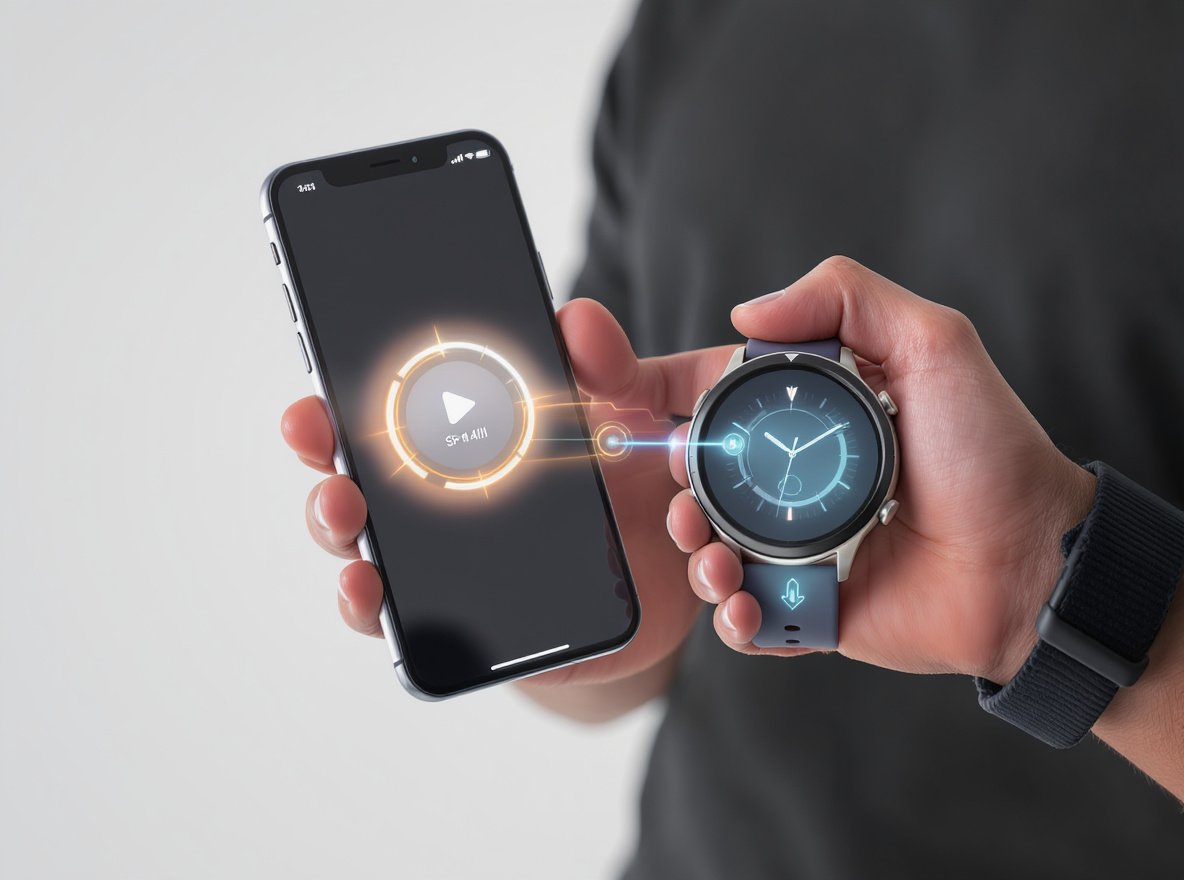
You just bought a new smartwatch and you’re excited to start using it with your Android phone. But when you try to connect them, nothing seems to work properly. The pairing process feels confusing and you’re not sure which app to download.
To pair a new smartwatch with your Android phone, you need to install the correct companion app (Wear OS by Google, Galaxy Wearable, or brand-specific apps like FitPro/DaFit), enable Bluetooth and location services on your phone, put your smartwatch in pairing mode, and verify the matching pairing codes on both devices.
Let’s walk through the complete process step by step, so you can start enjoying your new smartwatch features immediately.
What Do You Need Before Pairing Your Smartwatch?
Getting your devices ready beforehand prevents common connection failures and saves time during setup.
Your Android phone needs version 6.0 or higher with Bluetooth and location services enabled, while your smartwatch should be fully charged and not connected to any other devices.
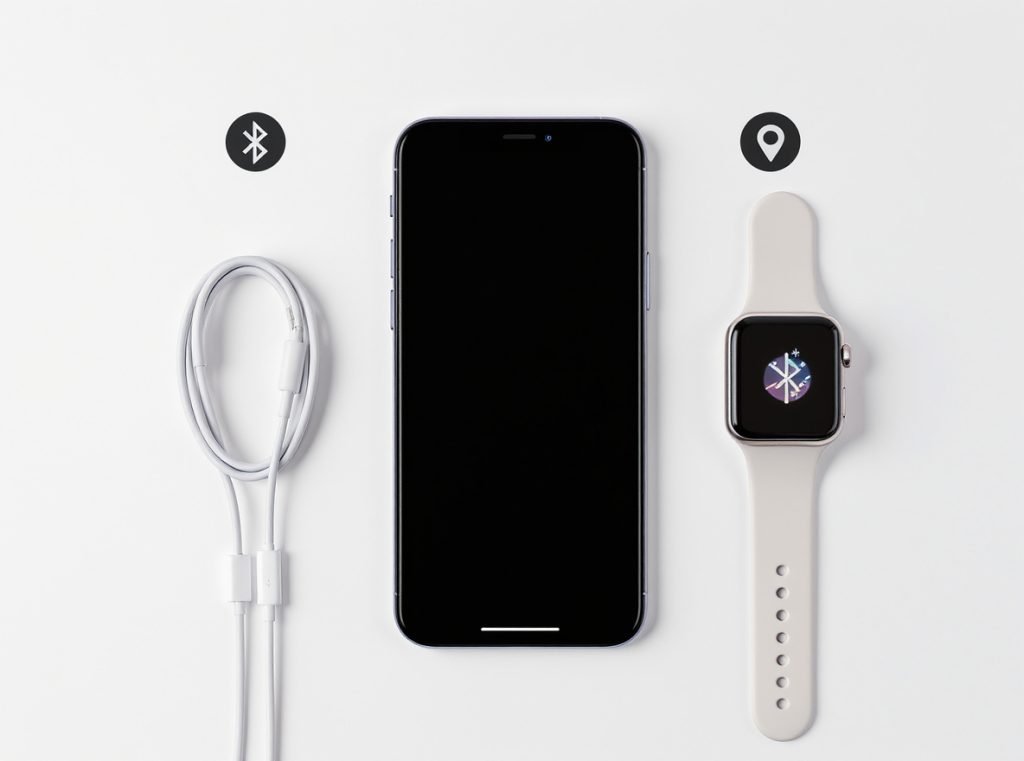
Modern smartwatches require specific conditions to establish stable connections. Missing even one requirement can cause pairing failures that seem mysterious but have simple solutions.
Essential Device Requirements:
Your Android phone must meet minimum specifications that vary by smartwatch brand. Most current models require Android 6.0 or newer, though some advanced watches need Android 8.0+.
Location services (GPS) are crucial for Android devices because they’re required for Bluetooth Low Energy (BLE) connections that smartwatches use. Without location services enabled, your phone cannot discover nearby smartwatches.
• Fully charged smartwatch and Android phone (minimum 50% battery)
• Bluetooth enabled on your Android phone
• Location services turned ON and set to “High Accuracy” mode
• Stable internet connection for downloading apps and updates
• Minimum 1.5-2.0 GB RAM depending on your watch model
Pre-Pairing Checklist:
Before starting the pairing process, ensure your smartwatch isn’t in airplane mode and disconnect it from any previously paired devices. Update your Android phone to the latest software version to avoid compatibility issues.
Remove any existing Bluetooth connections between your devices by going to Settings > Connected Devices and forgetting the watch if it appears in your paired devices list.
How Do You Find and Install the Correct Companion App?
Using the wrong companion app is the most common reason for pairing failures, but finding the right one is straightforward.
Most smartwatches display a QR code when first powered on – scan this code with your phone’s camera to automatically download the correct companion app from Google Play Store.
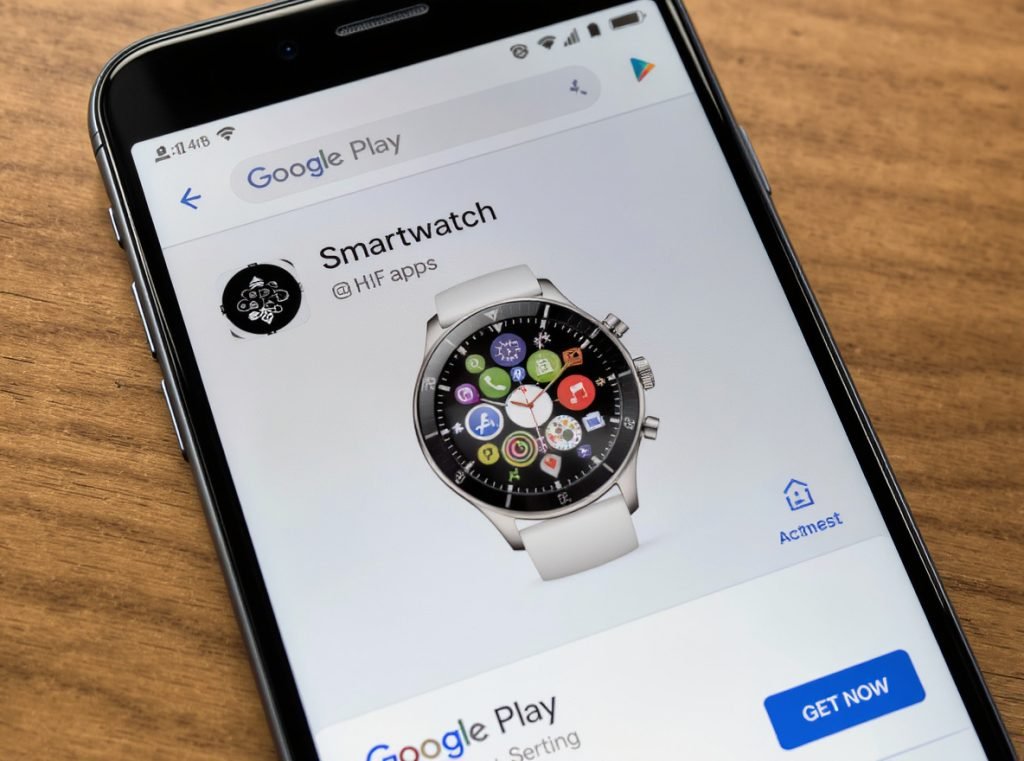
Different smartwatch brands require specific companion apps that act as bridges between your phone and watch. Using generic or third-party apps often leads to limited functionality or connection problems.
QR Code Method (Recommended):
When you first turn on your new smartwatch, it typically displays a QR code on the screen along with setup instructions. Open your phone’s camera app and point it at the QR code. This automatically directs you to the correct app in Google Play Store.
This method eliminates guesswork and ensures you download the official app that’s fully compatible with your specific watch model.
Manual App Selection:
If the QR code method doesn’t work, you’ll need to identify your watch brand and search manually. Check your watch packaging, user manual, or the device itself for the brand name and model number.
| Smartwatch Brand | Required Companion App | Android Requirement |
|---|---|---|
| Samsung Galaxy Watch | Galaxy Wearable | Android 5.0+ |
| Google/Fossil Wear OS | Wear OS by Google | Android 6.0+ |
| Generic/Chinese brands | FitPro, DaFit, GloryFit, HiWatch Pro | Android 4.3+ |
| Osmarto watches | Osmarto companion app | Android 6.0+ |
| Huawei/Honor | Huawei Health | Android 4.4+ |
App Installation Process:
Download the companion app from Google Play Store and open it immediately. Allow all requested permissions when prompted – these are necessary for the app to communicate with your smartwatch and manage notifications.
Create an account if required and complete any initial setup steps within the app before attempting to pair your devices.
What’s the Complete Step-by-Step Pairing Process?
Following the correct sequence prevents most pairing problems and ensures a smooth connection experience.
Turn on your smartwatch, open the companion app on your phone, tap “Set it up” or “Add new device,” select your watch from the available devices list, and confirm the matching pairing codes displayed on both screens.
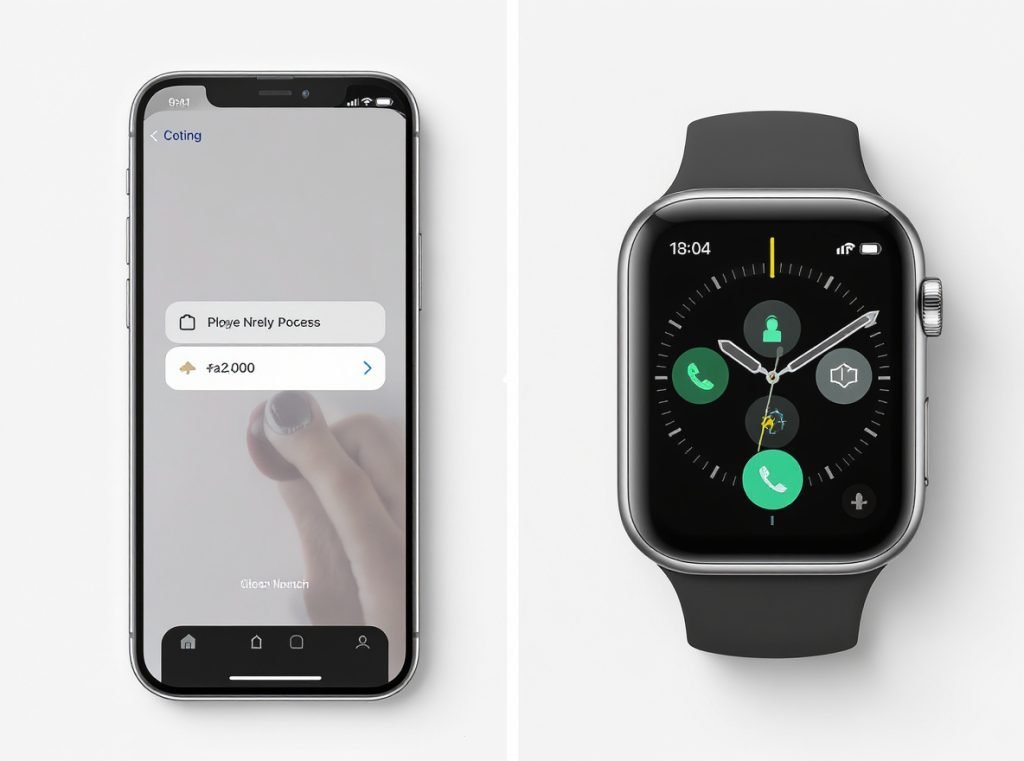
The entire pairing process typically takes 2-5 minutes when performed correctly. Rushing through steps or skipping verification can cause connection failures that require starting over.
Initial Smartwatch Setup:
Press and hold your smartwatch’s power button until it turns on. Select your preferred language and region when prompted, then accept the terms of service.
Wait for the pairing prompt or QR code to appear on your watch screen. Don’t proceed to other menus – stay on this pairing screen throughout the connection process.
Phone-Side Connection Steps:
Open your companion app and look for options like “Set it up,” “Add new device,” or “Pair watch.” The exact wording varies by brand, but the function is identical.
Your app will search for nearby smartwatches and display a list of available devices. Select your watch model from this list. If your watch doesn’t appear, ensure both devices have Bluetooth enabled and are within 3 feet of each other.
Critical Verification Process:
Both your phone and watch screens will display numerical pairing codes. These codes must match exactly – if they’re different, restart your smartwatch and begin the pairing process again.
Carefully compare each digit before tapping “Pair” on your phone screen. This verification step prevents unauthorized devices from connecting to your smartwatch.
Completion and Initial Setup:
After successful pairing, your devices will complete the connection process automatically. This may take several minutes as the companion app downloads necessary updates and synchronizes initial settings.
Install any required plugins or manager apps when prompted, and sign in to your Google account if requested. These additional steps unlock advanced features and ensure full functionality.
Why Won’t My Smartwatch Connect to My Android Phone?
Connection failures usually stem from common issues that have proven solutions, not hardware defects.
The most frequent causes include disabled location services, Bluetooth cache corruption, outdated companion apps, or interference from other paired devices. Systematically addressing these issues resolves most connection problems.
When pairing fails repeatedly, don’t assume your devices are defective. Most connection issues result from software conflicts or incorrect settings that can be fixed quickly.
Bluetooth-Related Problems:
Bluetooth cache corruption frequently prevents successful pairing. Clear your Bluetooth cache by going to Settings > Apps > Bluetooth > Storage > Clear Cache, then restart both devices completely.
Remove any existing smartwatch entries from your phone’s Bluetooth settings before attempting to pair again. Go to Settings > Connected Devices and “Forget” any watches that appear in your paired devices list.
Location Services Issues:
Many Android users overlook location services, but they’re essential for smartwatch pairing. Go to Settings > Location and ensure location services are enabled and set to “High Accuracy” mode.
Without proper location settings, your phone cannot discover nearby Bluetooth devices, making pairing impossible despite having Bluetooth enabled.
App-Specific Solutions:
Force close your companion app completely and restart it. If problems persist, clear the app’s data by going to Settings > Apps > [Companion App Name] > Storage > Clear Data.
Update your companion app to the latest version through Google Play Store. Outdated apps often have compatibility issues with newer Android versions or security updates.
Advanced Troubleshooting Steps:
For persistent problems, clear Google Play Services data by going to Settings > Apps > Google Play Services > Storage > Manage Space > Clear All Data. This resets core Android services that handle device connections.
Perform a complete phone restart by powering off completely rather than using the restart option. This clears temporary files and resets background services that might interfere with pairing.
How Do You Optimize Settings After Successful Pairing?
Proper configuration transforms your smartwatch from a basic device into a powerful productivity and health tool.
Access your companion app to configure notification preferences, health monitoring settings, watch faces, and app permissions according to your daily routine and privacy preferences.
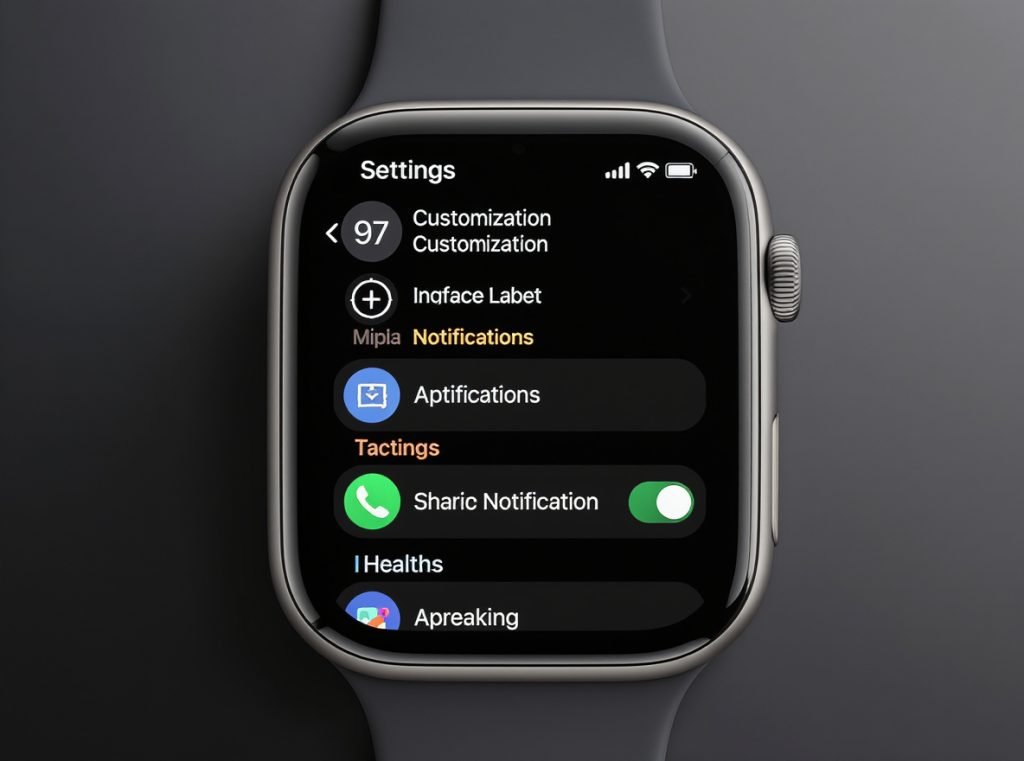
The initial pairing establishes basic connectivity, but customization makes your smartwatch truly useful for your specific needs and lifestyle.
Notification Management Strategy:
Start conservatively with notification settings to avoid overwhelming yourself. Enable notifications only for essential apps like calls, messages, calendar events, and one or two productivity apps.
Configure quiet hours to prevent notifications during sleep or important meetings. Most companion apps allow you to set custom schedules for different days of the week.
• Select 5-7 most important apps for watch notifications initially
• Set quiet hours from 10 PM to 7 AM for better sleep
• Enable priority notifications for calls and messages
• Review and adjust settings weekly based on usage patterns
Health and Fitness Configuration:
Enter accurate personal information including height, weight, age, and activity level. This data enables your smartwatch to provide personalized health insights and accurate calorie calculations.
Enable continuous heart rate monitoring, automatic step counting, and sleep tracking if your watch supports these features. However, be aware that continuous monitoring reduces battery life.
Watch Face and Display Customization:
Choose watch faces that display information you check frequently. Business users often prefer faces showing calendar appointments and weather, while fitness enthusiasts might want heart rate and step count prominently displayed.
Adjust screen brightness and timeout settings to balance visibility with battery life. Configure always-on display based on your usage patterns – enable it if you check time frequently, disable it for longer battery life.
What Should You Do When Standard Troubleshooting Fails?
Sometimes pairing problems require more comprehensive solutions that address deeper system issues.
Perform a complete reset sequence including unpairing from the companion app, clearing all related app data, restarting both devices, and attempting pairing in a different location with minimal Bluetooth interference.
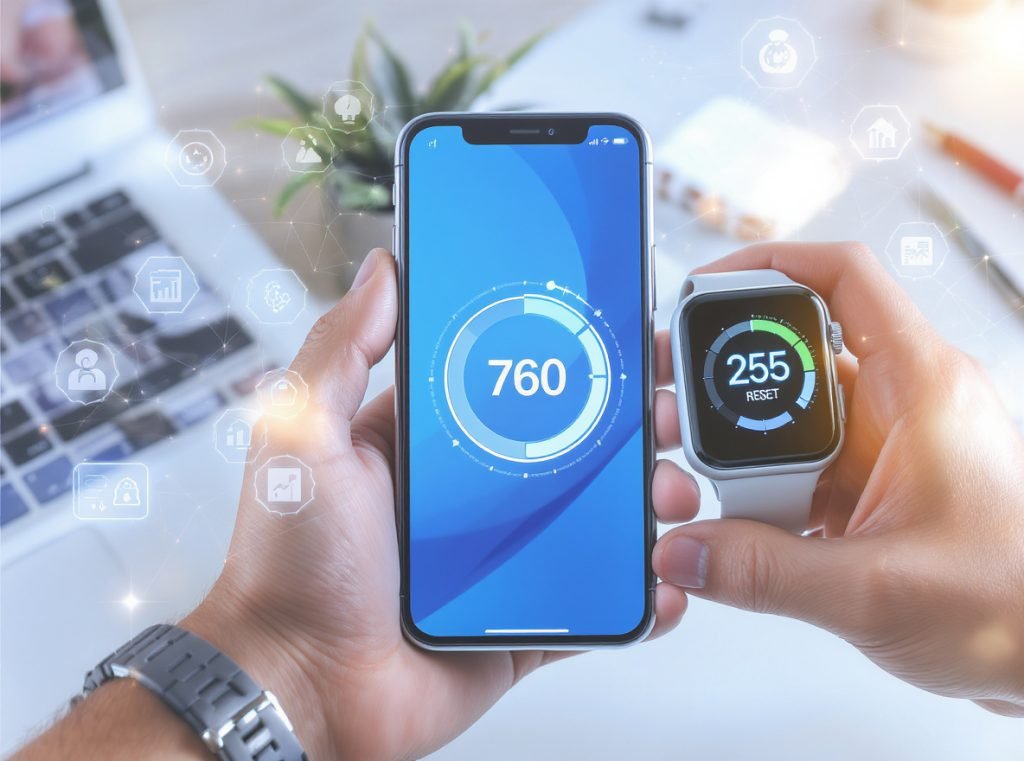
When basic troubleshooting doesn’t resolve connection issues, systematic escalation typically identifies and fixes the underlying problem.
Complete Reset Procedure:
Start by completely unpairing your watch from the companion app. Look for options like “Forget watch” or “Unpair device” in the app’s advanced settings or device management section.
Remove the watch from your phone’s Bluetooth settings by going to Settings > Connected Devices and selecting “Forget” next to any watch entries.
Clear all data for your companion app and Google Play Services as described in the previous troubleshooting section. This removes corrupted configuration files that might prevent successful pairing.
Alternative Connection Methods:
For Samsung Galaxy Watches, try selecting the “second option” if your watch appears twice in the device search results. This addresses a known issue where watches register multiple connection profiles.
Attempt pairing in a different physical location with fewer electronic devices nearby. Bluetooth interference from routers, other smartwatches, or wireless speakers can prevent successful connections.
Hardware Verification:
If software solutions don’t work, inspect both devices for physical damage, especially around antenna areas. Water damage, even minor exposure, can affect Bluetooth functionality without obvious visual signs.
Try pairing your smartwatch with a different Android phone if available. If pairing succeeds with another phone, the issue lies with your original device’s Bluetooth hardware or software configuration.
Professional Support Options:
Contact your smartwatch manufacturer’s customer support with specific details about your troubleshooting attempts. Have your device model numbers, Android version, and a list of attempted solutions ready.
Consider visiting a service center if your watch is still under warranty. Many connection issues that seem complex to users have simple solutions that trained technicians can quickly identify and resolve.
How Can Wholesale Buyers Ensure Exceptional Customer Experiences?
Successful wholesale smartwatch businesses prioritize customer satisfaction through comprehensive support systems and quality partnerships.
Wholesale buyers should establish robust staff training programs, maintain detailed compatibility documentation, partner with manufacturers offering strong technical support, and implement quality assurance processes to minimize customer frustration and returns.
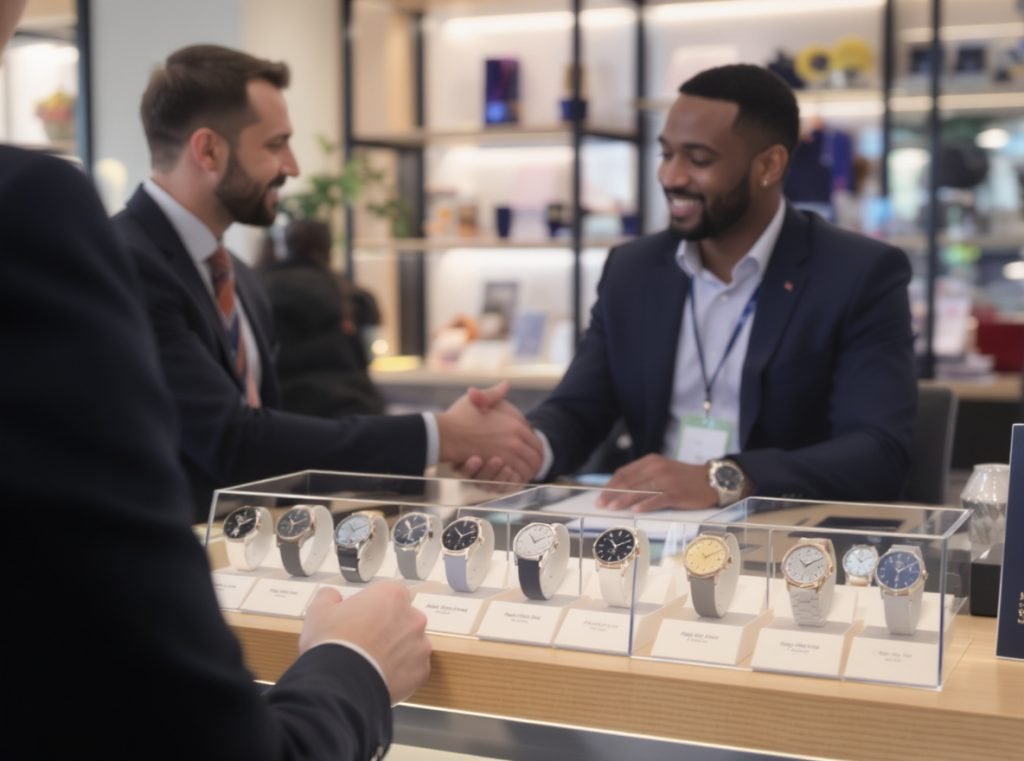
Your business success depends directly on end-user satisfaction with the pairing process. Customers who struggle with setup generate support calls, negative reviews, and product returns that impact profitability.
Comprehensive Staff Training Programs:
Train your sales staff to personally use and demonstrate different smartwatch models. Hands-on experience enables them to provide confident assistance and handle customer objections effectively.
Develop step-by-step setup guides for each smartwatch brand you carry, including common troubleshooting solutions and compatibility requirements for different Android versions.
Quality Assurance and Testing:
Test sample devices with various Android phone models and versions before committing to large inventory orders. This identifies compatibility issues before they affect your customers.
Maintain updated compatibility charts that clearly specify which Android versions and phone models work with each smartwatch you sell.
| Business Priority | Implementation Strategy | Expected Outcome |
|---|---|---|
| Staff Training | Hands-on product experience, setup workshops | Confident customer assistance |
| Quality Control | Sample testing, compatibility verification | Reduced returns and complaints |
| Customer Support | Setup assistance, follow-up programs | Higher satisfaction scores |
| Supplier Relations | Technical support partnerships | Reliable problem resolution |
Customer Support Infrastructure:
Offer in-store pairing services for customers who prefer professional assistance. This value-added service justifies premium pricing and builds customer loyalty.
Create video tutorials and printed quick-start guides with QR codes for app downloads. Visual instructions reduce confusion and support call volume.
Supplier Partnership Strategy:
Partner with smartwatch manufacturers who provide comprehensive technical documentation, multilingual support materials, and responsive customer service.
Prioritize suppliers who regularly update their companion apps and provide ongoing technical support for compatibility issues with new Android updates.
Osmarto’s Wholesale Excellence:
At Osmarto, we understand that seamless device pairing directly impacts your customer satisfaction and business reputation. Our smartwatches undergo extensive compatibility testing with popular Android devices across different versions and manufacturers.
We provide comprehensive technical documentation in multiple languages, video setup guides, and dedicated wholesale support to help your team handle customer questions confidently. Our companion apps receive regular updates to ensure compatibility with the latest Android versions and security requirements.
Our wholesale partners receive priority technical support, sample devices for staff training, and marketing materials to educate customers about proper setup procedures. This comprehensive support system helps you build a successful smartwatch business while minimizing returns and support issues.
Summary
Successful smartwatch pairing requires the correct companion app, enabled location services and Bluetooth, and careful verification of pairing codes on both devices. Most connection problems stem from software issues rather than hardware defects and can be resolved through systematic troubleshooting approaches.
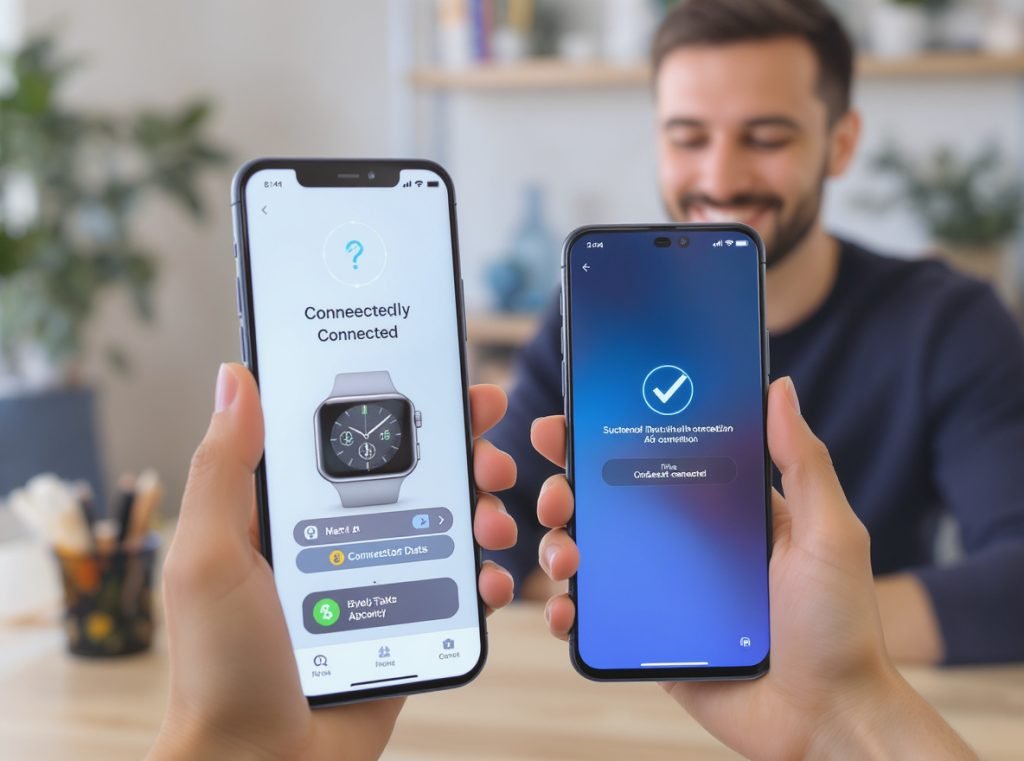
Ready to Partner with a Reliable Smartwatch Manufacturer?
Osmarto specializes in producing high-quality, Android-compatible smartwatches designed for seamless pairing experiences. Our devices feature intuitive setup processes, regularly updated companion apps, and comprehensive technical support that reduces customer service burdens for our wholesale partners.
Whether you’re a distributor, retailer, or brand manufacturer, we provide the quality products, technical documentation, and business support necessary to succeed in the competitive smartwatch market.
Contact us today to discuss your wholesale requirements, receive compatibility testing samples, and learn how Osmarto can help you deliver exceptional customer experiences that drive repeat business and positive reviews.